
11.3 Branches, PRs, and Team Workflows
Goal for this section: Understand the value of branches, master the Pull Request workflow, and establish a daily rhythm for collaborative development.
The Instinct to "Copy Before Changing"
Xiaoming wants to add a "You Might Like" recommendation feature to his "Personal Douban" project. But he's hesitant—the rating system is finally running smoothly, and he worries that tinkering with recommendations might accidentally break the rating code, costing him time to fix.
His first reaction: copy the entire project folder, experiment in the copy. If it works out, replace the original with the copy; if it breaks, just delete the copy.
You've probably had this same instinct—wanting to try something new but afraid of breaking what works, so you make a copy first. The thinking is sound; it's just the execution that's primitive. Git has a more elegant mechanism for exactly this purpose: branches.
Branches: Git's Version of "Copying a Folder"
A branch is essentially "copy before changing," but far more sophisticated than duplicating folders. It doesn't actually copy all the files—Git only records differences, so creating a branch takes almost no extra space. You can switch between the "original" and the "copy" anytime, merge changes back precisely when ready, rather than replacing entire folders.
The problem with copying folders: you've modified 10 files in your copy, someone else fixed an urgent bug in 3 files on the original, and now you want to merge your changes back—you have to manually compare 13 files to ensure nothing is missed or overwritten. Git branches automate this for you.
Your project starts with a default main branch, usually called main (some older repositories use master). This represents "the current stable, working version." When developing a new feature, create a new branch from main, like feature/recommend, and experiment freely there. Broke something? Switch back to main, everything is as before. Finished? Merge into main, the feature goes live.
Think of main as your "official release" and feature branches as "draft notebooks"—you can scribble all you want in drafts without affecting the official version, until you're satisfied and copy the content over.
When Xiaoming tells Claude Code "create a branch to develop the recommendation feature," Claude Code creates and switches to the feature/recommend branch. From this moment, all Xiaoming's changes are on this branch; main remains untouched. Branch names typically use feature/xxx for new features, fix/xxx for bug fixes, refactor/xxx for refactoring—this isn't mandatory, but helps you and collaborators instantly understand what a branch is for.
The Complete Branch Workflow
Let's follow Xiaoming through the complete process. This is the most common collaboration pattern on GitHub, called GitHub Flow. Just as cooking has many schools, home cooking only needs one simple routine—and GitHub Flow is that simplest pattern. What you'll see next is everything there is to it.
GitHub Flow 完整流程
从 main 开始
稳定的主分支
Xiaoming creates feature/recommend from main and starts developing the recommendation algorithm. He works with Claude Code to write the recommendation logic, add new API endpoints, and adjust the frontend. He commits after each small step—"Add data model for recommendation algorithm," "Implement rating-based recommendation logic," "Display recommendations on frontend."
Meanwhile, his friend works on user profile pages in another branch, feature/user-profile. Each works independently on their own branch without interference. Xiaoming's broken recommendation feature doesn't affect his friend's profile page; his friend's profile bugs don't affect Xiaoming's recommendations. This is the core value of branches—isolation.
At a certain point, Xiaoming pushes his branch to GitHub. This serves two purposes: cloud backup for his code, and visibility for his friend to see progress. Even if Xiaoming's computer fails, the code on the branch won't be lost.
Feeling the recommendation feature is nearly ready, but not wanting to merge directly into main—he wants his friend to review the code first—he creates a Pull Request (PR) on GitHub.
Pull Request: Review Before Merging
Why not just merge the branch into main?
Think about documents you've written—how would you feel if someone edited your main text without showing you first? A PR is "I've made changes, please review before merging." This "review" process is called Code Review, a critical team practice for preventing incidents.
You might think, "There's just two of us, do we need to be this formal?"—Yes. Not because the process itself matters, but because another pair of eyes genuinely catches issues you can't see yourself. After three days immersed in implementation details, you've developed blind spots—you think the logic is fine, but your friend immediately spots a missing edge case.
PRs offer more than "extra eyes." Your friend might catch boundary conditions or potential bugs you missed—like the recommendation algorithm not handling users with no rating history. By reviewing your code, your friend also learns how the feature works, enabling knowledge sharing—if Xiaoming is unavailable someday, his friend can maintain the feature because he's already read the code during review.
All discussions about this code stay on the PR page, traceable later to understand "why was it written this way." Three months later, encountering puzzling code, you can check the PR discussion for answers.
For personal projects, PRs still add value—they provide a "pause and reflect" moment before merging. After days of continuous development, the PR diff view helps you examine changes holistically, catching issues lost in the details. Before submitting, you can also have Claude Code run a self-review—checking for logic errors, security risks, performance issues. This produces higher-quality code for your friend's review, making them more willing to help.
Your friend opens the PR page, seeing which files were changed and exactly which lines in each. He can comment on specific lines: "This recommendation algorithm doesn't handle users with no rating history." Xiaoming sees the comment, modifies the code, and pushes again. The PR updates automatically; your friend sees the new changes. This back-and-forth may continue several rounds—questions raised, modifications made, re-reviewed—until both are satisfied. This isn't wasted time; it's improving code quality. Many bugs are caught here rather than by users after deployment.
Once your friend confirms everything looks good, he clicks Merge pull request. The recommendation feature code merges into main and goes live. After merging, GitHub asks whether to delete the branch. Click Delete branch—the branch has served its purpose, all its changes now merged into main. Don't hesitate to delete; branches are cheap, disposable. The PR page preserves all code changes and discussion history even after branch deletion. To revisit "how was the recommendation feature implemented," check this PR later.
Complete flow diagram:
main ──────────────────────────────────────── main (includes recommendation)
  │                                            ↑
  └── feature/recommend ──→ Develop ──→ PR ──→ Review ──→ Merge
GitHub PR Page Walkthrough
First time creating a PR, here's what you need to know about the page.
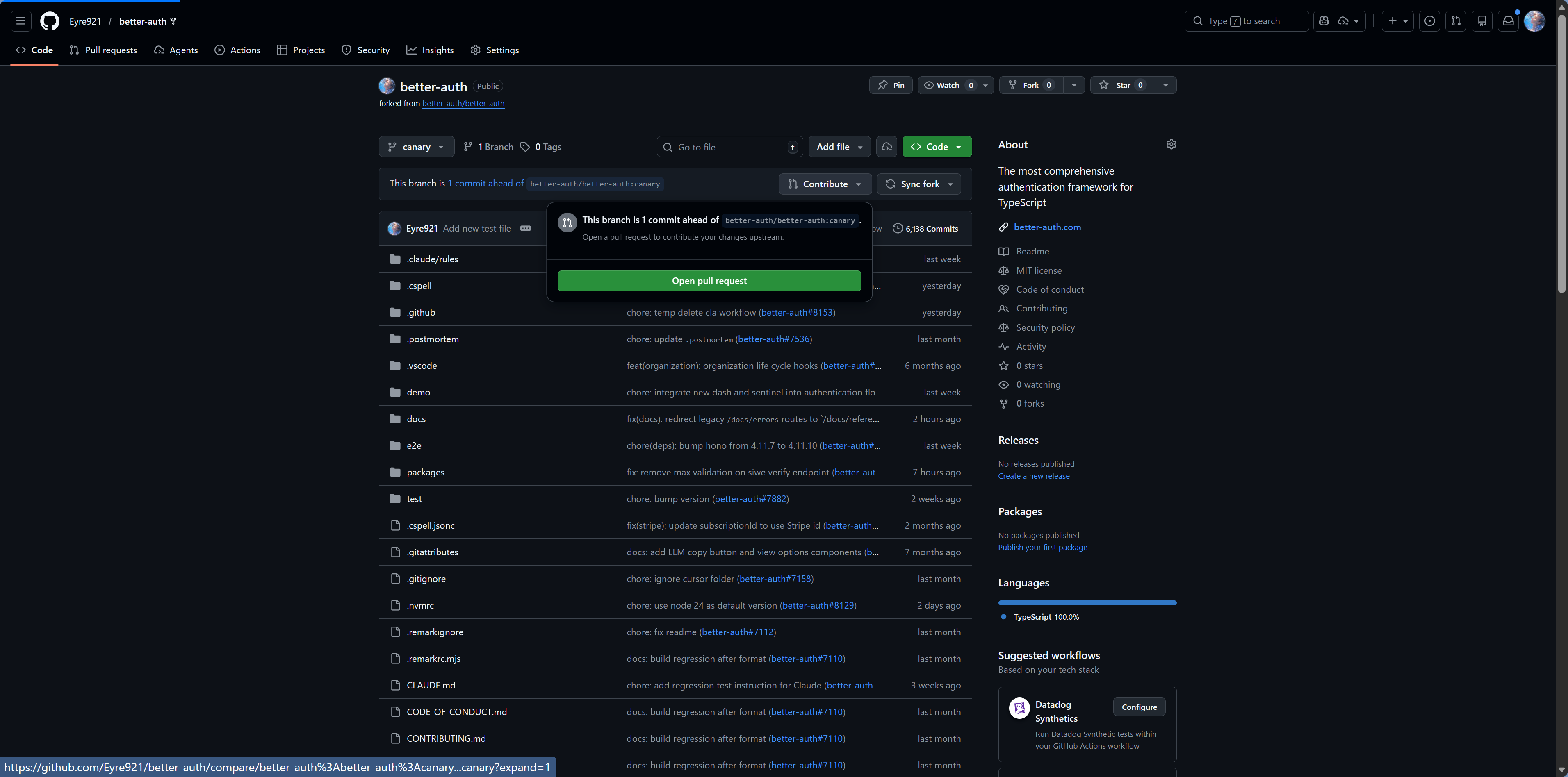
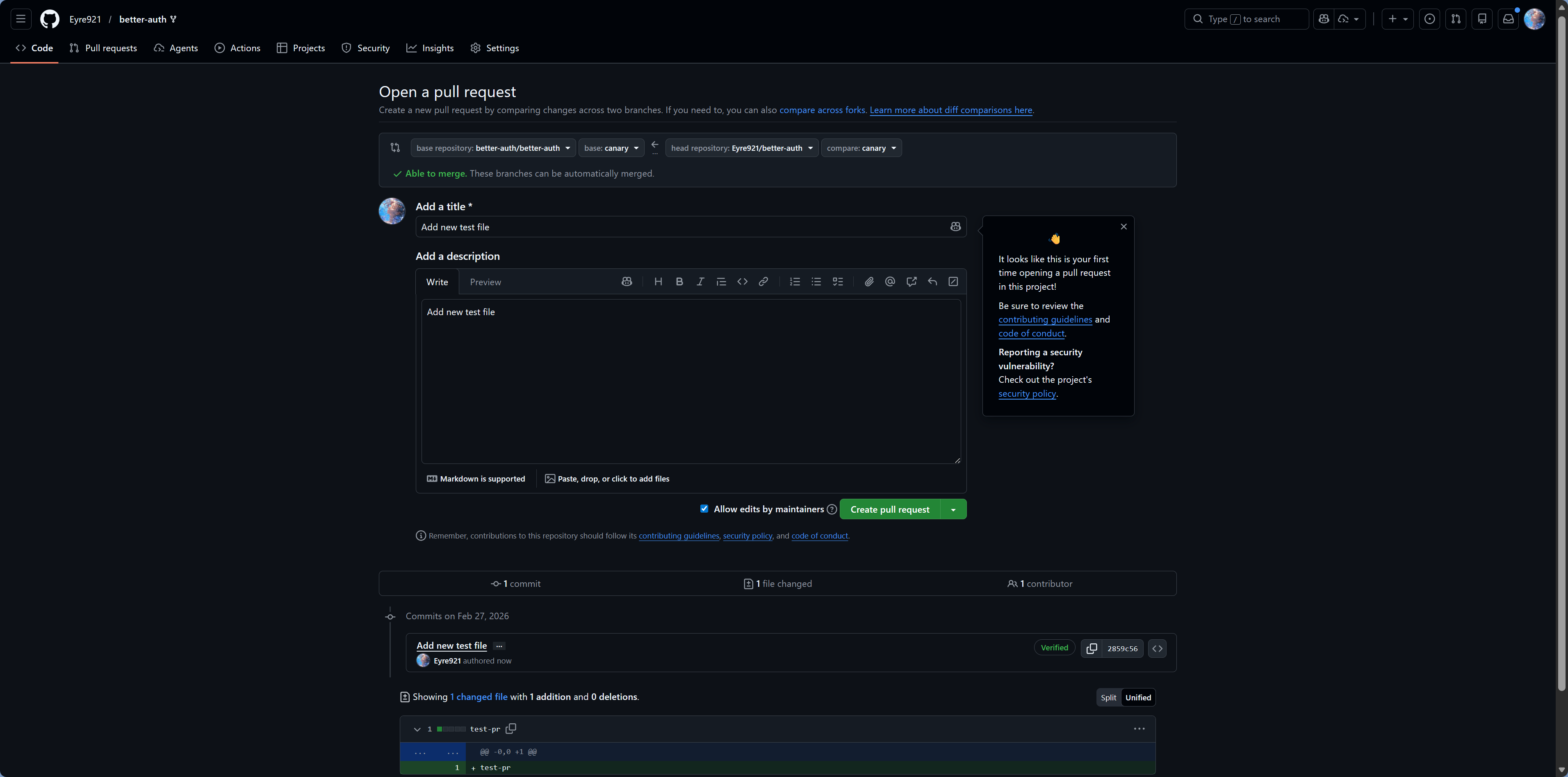
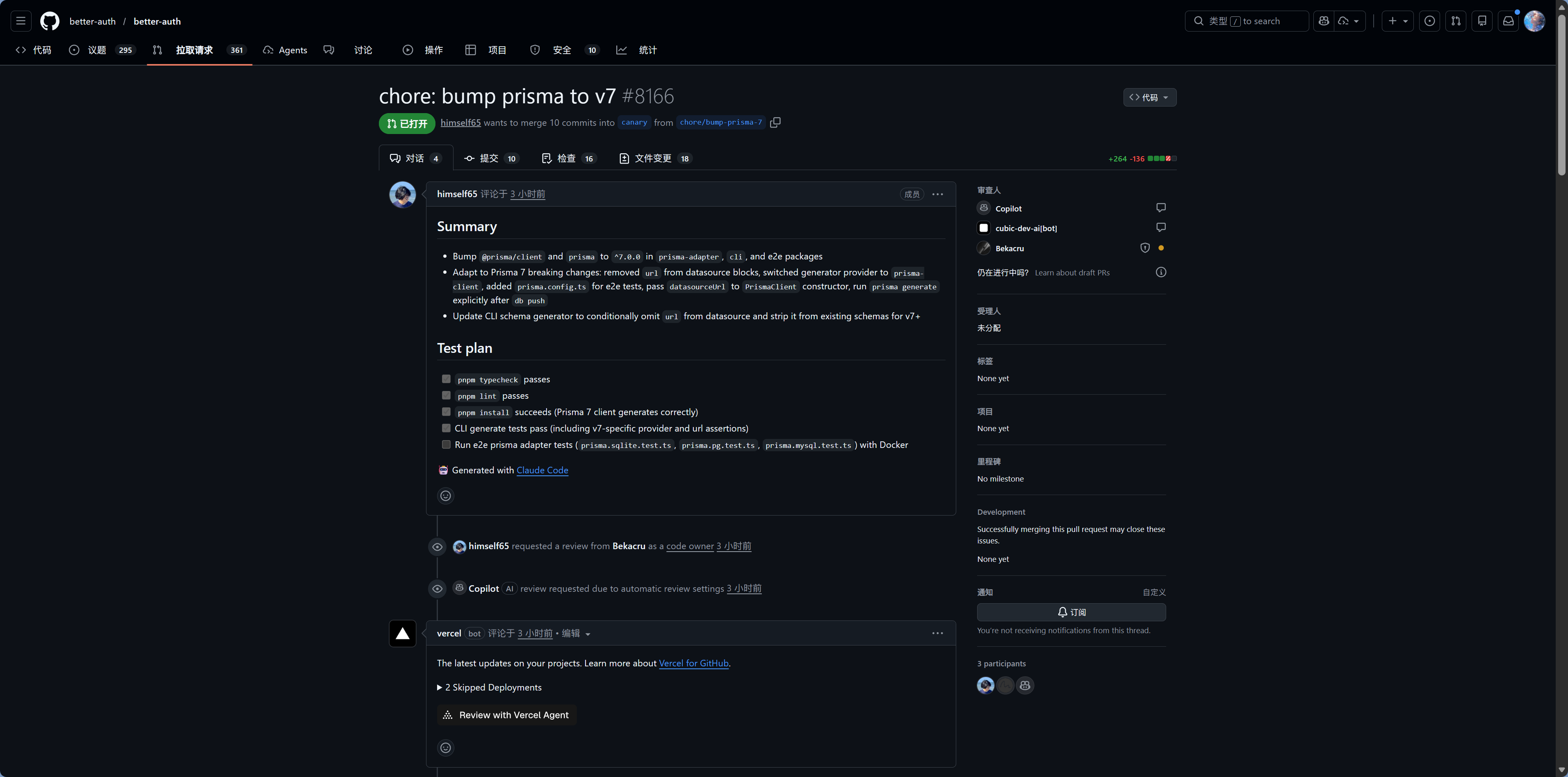
When creating a PR, you fill in the title (brief description of what this PR does) and description (detailed explanation of what changed and why), then select which branch to merge into (usually main). Keep titles clear, like "Add rating-based recommendation feature." Descriptions can be more detailed—which modules changed, why this approach was chosen, any known limitations. Good PR descriptions help reviewers understand your intent faster, improving review efficiency. You can also have Claude Code create the PR—tell it "create a PR on GitHub to merge feature/recommend into main" and it will use the GitHub CLI, including filling in title and description.
The PR detail page has several tabs: Conversation contains the PR description and all discussion; Commits shows all commits in this PR; Files changed displays diffs for all modified files—this is the main review workspace where you see every line change in each file. Green-highlighted lines are additions, red are deletions, unhighlighted lines provide context (helping you understand where changes occur in the code). After review passes, a green Merge button appears at the bottom—click to merge.
If you've configured CI/CD (covered in Chapter 12), the PR page also shows automated check results—whether tests pass, builds succeed. When checks fail, the Merge button turns gray, preventing problematic code from being merged—like a submit button staying disabled when required fields are empty. This is an automated safety net, no human monitoring needed. Even without CI/CD configured yet, knowing this capability exists is useful—it becomes invaluable when your project needs stricter quality assurance.
Do Personal Projects Need Branches Too?
You might wonder: I'm developing alone, no friends to review, do I still need branches and PRs?
The answer: it depends. For small projects, developing directly on main—committing and pushing—is perfectly fine. Many personal projects thrive with main-only development from start to finish.
But as complexity grows—when you want to try two different approaches simultaneously, or perform major refactoring without affecting the deployed version—branches become useful.
Consider this scenario: your project is deployed and live (Chapter 12 covers deployment), users are actively using it. You want to add a feature that will take several days. If you develop directly on main, half-finished code might get deployed—incomplete features shown to users, poor experience. But developing on a branch keeps main always stable and deployable; new features merge only after completion and testing, so users always see complete functionality.
A middle ground: small daily changes commit directly to main; major features or experimental work use branches. No need to strictly enforce full PR workflows from the start—introduce them when collaborating with others.
Git workflows are gradual—first build habits of frequent commits and timely pushes; once those stabilize, introduce branches and PRs. Don't try to do everything at once; that only makes Git feel cumbersome.
Cross-Platform Collaboration: Windows Meets Mac
Xiaoming uses Windows; his friend uses Mac. Their collaboration hits several classic pitfalls.
If you've ever transferred files between Windows and Mac, you've encountered encoding issues, garbled filenames, or display problems. Cross-platform issues in Git collaboration are fundamentally the same—different operating systems have different "dialects" that need standardization.
Line ending differences are the most common pitfall. Windows uses CRLF (two characters) for newlines; Mac/Linux uses LF (one character). These look identical on screen—both create line breaks—but differ at the binary level.
Without standardization, Git thinks entire files are modified—changing just one line of code, yet the diff shows every line changed because line endings shifted from LF to CRLF (or vice versa). This "false diff" makes code review painful, obscuring actual changes.
The solution: tell Claude Code "configure Git to use LF line endings universally." It creates a .gitattributes file in the project root with * text=auto eol=lf, automatically converting all text files to LF on commit. Configure once, benefit the whole team—regardless of who develops on what system, committed line endings are unified.
Filename casing is another subtle trap. Windows is case-insensitive—Button.tsx and button.tsx are the same file; on Mac/Linux they're different files.
Xiaoming writes import Button from './button' with a file named Button.tsx—works on his Windows, but his friend's Mac throws "file not found." This bug is especially hard to debug because it works perfectly on Xiaoming's machine; he'll insist "but it runs fine here!"
Worse, Git on Windows by default doesn't track casing changes—renaming Button.tsx to button.tsx might go completely undetected. The solution: standardize on lowercase or PascalCase filenames, agree as a team.
Path separators are simpler: Windows uses backslashes \, Mac/Linux use forward slashes /. Always use forward slashes in code. import { Button } from './components/Button' works everywhere; import { Button } from '.\\components\\Button' only works on Windows. Fortunately, most modern frameworks and bundlers handle path separators for you—just use forward slashes in code, no extra worry needed.
You don't need to memorize each pitfall. What's important is being aware they exist—when collaborating across systems and encountering "same code, different results," your first thought should be "possible cross-platform compatibility issue," then ask Claude Code to investigate. Claude Code knows these issues well and usually quickly identifies whether it's line endings, casing, or paths. Configuring .gitattributes and filename conventions early saves much trouble later.
Daily Development Rhythm
Once collaboration with your friend finds its groove, daily development settles into a steady rhythm. Start each day by pulling latest code, ensuring your local copy is current. Then create a feature branch to isolate your work. Develop on the branch, moving fast in small steps, committing frequently. Push to GitHub at milestones—both for backup and to show progress. When complete, create a PR requesting review. After review passes, merge to main and delete the feature branch to keep things tidy.
日常开发节奏
拉取最新代码
git pull
This rhythm isn't rigid rules. Personal projects can simplify—not necessarily branching and PR-ing every time. But when collaborating with others, this workflow prevents most "code conflicts." It may feel like many steps at first, but becomes habit after a few tries. Like driving—initially overwhelming to manage steering, gas, brake, and mirrors simultaneously. Once familiar, these actions become automatic, barely noticed. Git workflows are the same; with practice, "pull → branch → develop → PR → merge" becomes muscle memory.
Quick Reference
| What you want to do | Tell Claude Code |
|---|---|
| Start a new feature | "Create a branch from main to develop the xxx feature" |
| Save progress | "Commit current changes" |
| Sync to cloud | "Push to GitHub" |
| Get latest code | "Pull latest code from main branch" |
| Create PR | "Create a Pull Request on GitHub" |
| Resolve conflicts | "Help me resolve Git conflicts" |
| Undo changes | "Undo changes to xxx file" |
| Roll back version | "Revert to last working version" |
| Delete branch | "Delete the feature/xxx branch" |
Key Takeaways
Branches let you safely experiment with new features; PRs give you review before merging; cross-platform configuration enables smooth collaboration across different systems. The core of this workflow isn't memorizing commands, but building a habit: branch before changing, review before merging.
Next chapter: Your code is on GitHub, but how do users access it? Chapter 12: Serverless Deployment and CI/CD Automation takes your project live.