
13.1 Buying a Domain and Configuring DNS
Goal of this section: Buy a domain that belongs to you, configure DNS records, and let users access your app through a custom domain.
Xiaoming decided to buy a proper domain for his website. He opened a search engine and typed in "free domain"—the old hand stopped him immediately: "Didn’t we just say in the last section that free domains aren’t reliable? Let’s just buy one directly."
Buying a Domain
Choosing a Registrar
| Registrar | Advantages |
|---|---|
| Cloudflare | At-cost renewals, free DNS and CDN |
| Alibaba Cloud (Wanwang) | The largest provider in China, supports .cn domains |
| Tencent Cloud (DNSPod) | Part of the Tencent ecosystem, fast DNS resolution |
| Namecheap | Low prices, free privacy protection |
How to Choose a Domain
Xiaoming excitedly searched for xiaoming.com—already registered. He then tried xiaoming-app.com, which was available, but the old hand shook his head: "Too long. People won’t be able to spell it when they hear it."
In the end, Xiaoming picked a short, easy-to-spell domain. There’s no single correct answer when choosing a domain, but there are a few general principles: shorter is easier to remember, people should be able to type it correctly when they hear it, and .com is the most universal option. If .com is already taken, .dev, .app, and .io are also good choices—but pay attention to renewal pricing. Some domains cost ¥1 for the first year and ¥300 to renew, so make sure to check before buying.
Domain Structure
A domain’s hierarchy is like an address—"China · Beijing · Chaoyang District" goes from large to small, and com · myapp · blog also goes from large to small, but from right to left:
https://blog.myapp.com
  │      │      │    │
  │      │      │    └── Top-level domain (TLD): .com / .cn / .dev
  │      │      └────── Second-level domain (SLD): myapp (the part you buy)
  │      └───────────── Subdomain: blog (configured by you)
  └──────────────────── Protocol: https
What you buy is myapp.com (second-level domain + top-level domain). You can create unlimited subdomains: blog.myapp.com, api.myapp.com, admin.myapp.com—without paying anything extra.
🌐 域名层级结构
Purchase Process
- Register a Tencent Cloud account
- Go to Domain Registration
- Search for the domain you want
- Choose the registration period (1 year is recommended to start), then complete payment
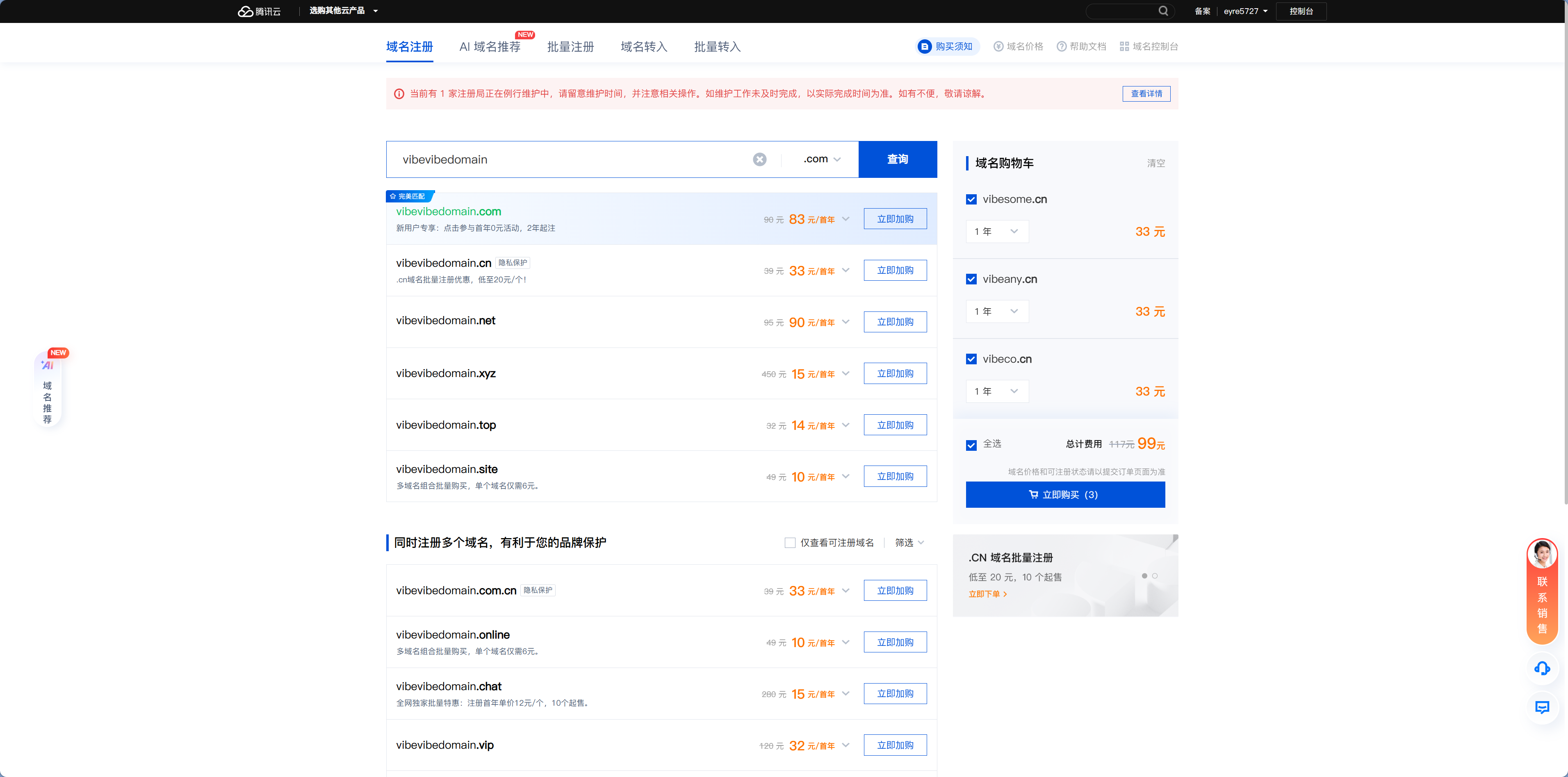
Registering domains in China
If you need a .cn domain or plan to complete ICP filing, it’s recommended to register through a domestic platform. The process is similar: search for the domain → add it to the cart → complete real-name verification → pay.
DNS Configuration
You’ve bought the domain, but browsers still don’t know what it is—you need to tell DNS "where this domain should point."
What Is DNS
DNS is like your phone’s contact list. You search for "Mom," and your phone dials 138xxxx for you. A browser looks up myapp.com, and DNS helps it find the server address. Without DNS, you’d have to remember the IP address of every website—just like without contacts, you’d have to memorize everyone’s phone number.
DNS 解析过程
Two Common Record Types
myapp.com1.2.3.4| A 记录 | CNAME | |
|---|---|---|
| 指向 | IP 地址 | 域名 |
| 更新 | 手动 | 自动跟随 |
| 根域名 | 支持 | 不支持 |
| 典型用途 | VPS 部署 | Vercel / 平台部署 |
| Record Type | Points To | Typical Use Case |
|---|---|---|
| A record | IP address (such as 1.2.3.4) | Points to a cloud server |
| CNAME record | Another domain name (such as xxx.edgeonepages.com) | Points to a deployment platform |
An A record is like direct dialing—the phone number is stored directly in your contacts, and dialing it takes you straight there. Use an A record for cloud servers, because you have a fixed public IP.
A CNAME is like call forwarding—the contact stores another person’s name, and you first look up that person’s number before calling. Use a CNAME for Serverless deployments, because the platform’s IP may change, but the domain name won’t. If the platform changes its server IP, that’s fine—the forwarding target stays the same, and your domain still works.
Configuration Steps (Using EdgeOne Pages as an Example)
Xiaoming has bought the domain and now needs to connect it to EdgeOne Pages.
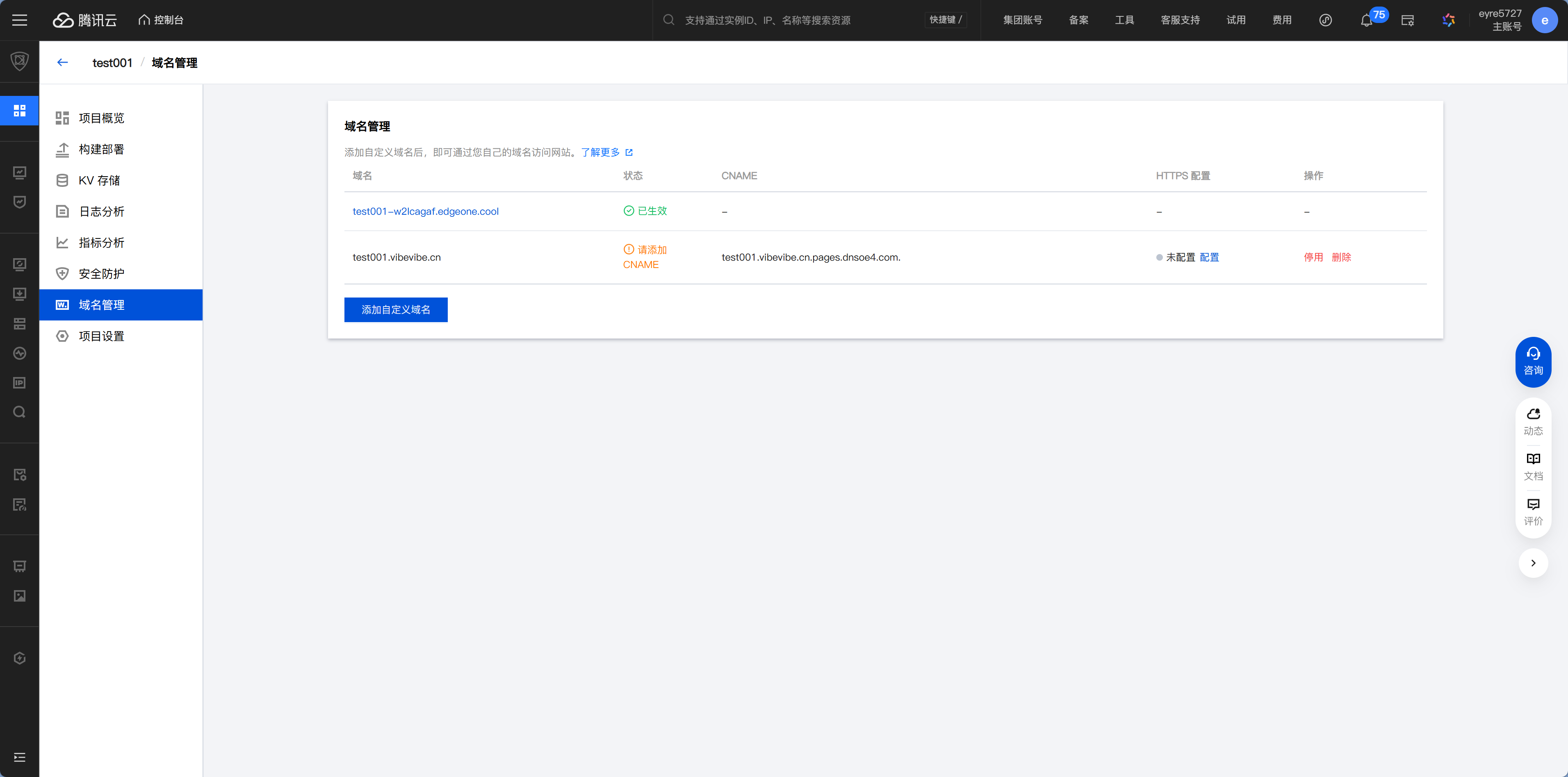
Step 1: Add a custom domain in the deployment platform
Open your EdgeOne Pages project settings → Custom Domain → enter your domain (for example, myapp.com).
The platform will tell you which DNS record to add, usually a CNAME record. (Sometimes it may also ask you to add a TXT record—just follow the instructions carefully.)
Step 2: Add the DNS record in your domain registrar
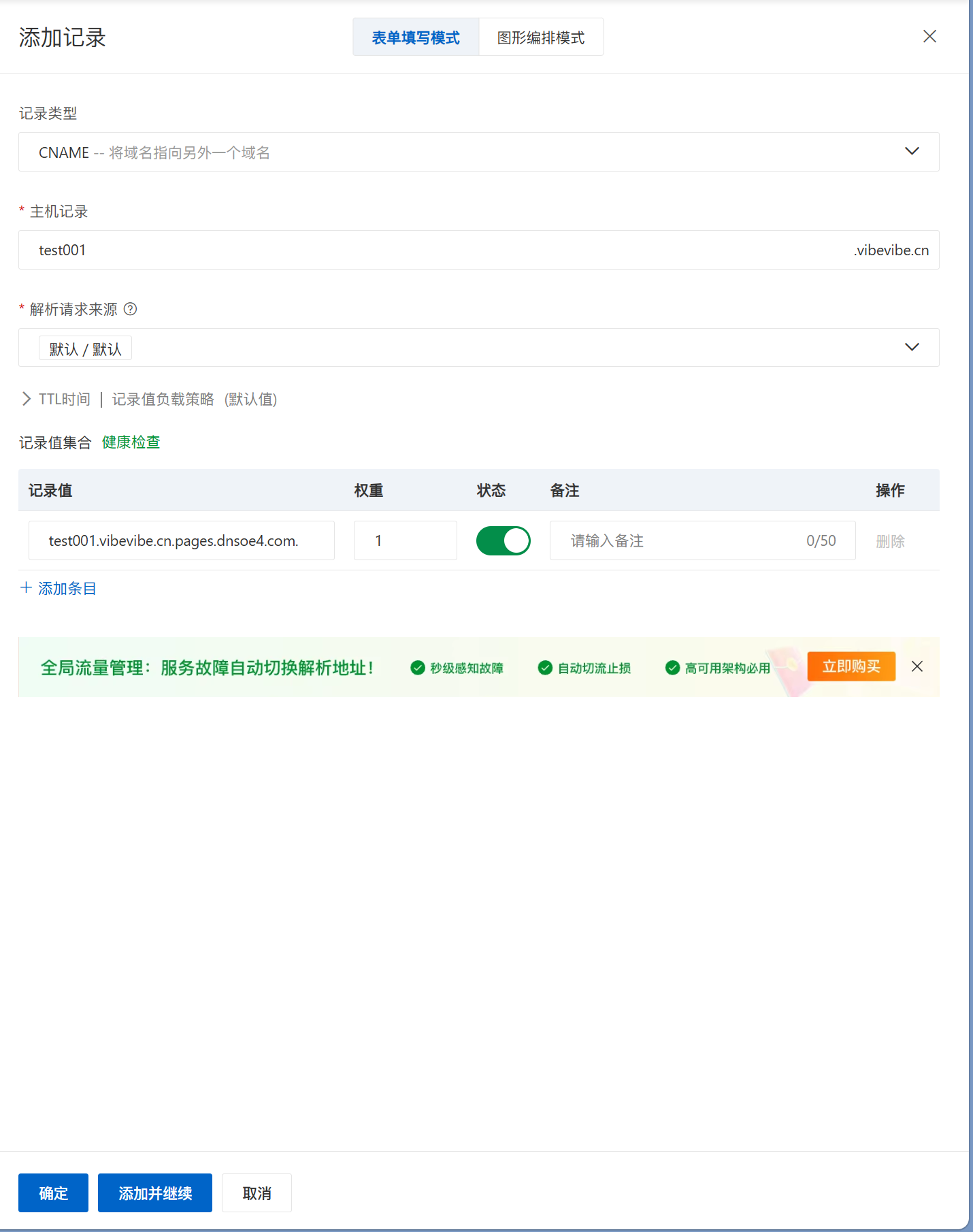
Go to the DNS management page of your registrar (Cloudflare / Alibaba Cloud / Tencent Cloud). The interface below shows an example of adding a record in Alibaba Cloud DNS:
- Type: CNAME
- Name:
@(represents the root domain) orwww, or another custom prefix - Target: The CNAME value provided by the platform
- TTL: Auto
Step 3: Wait for it to take effect
DNS changes need propagation time, which usually ranges from a few minutes to a few hours.
TTL (Time To Live) is like the cache in your contacts app. If you change your mom’s phone number but your phone still remembers the old one, you have to wait for the cache to expire before it uses the new number. DNS works the same way—after you update a record, DNS servers around the world need time to sync. In most cases, it only takes a few minutes, though sometimes it can take a few hours.
You can verify whether DNS has taken effect in the following ways:
# Check whether DNS has taken effect in the terminal
nslookup myapp.com
# or
ping myapp.com
If the returned IP or CNAME target is correct, the DNS record has been set up successfully. You can also ask Claude Code to help verify it: "Help me check whether the DNS resolution for myapp.com has taken effect."
HTTPS: Put a Lock on Your Website
SSL 证书签发流程
HTTP is like a postcard—anyone along the way can read it. HTTPS is like a sealed letter—only the recipient can open it. The little lock in the browser’s address bar is the sign of that "sealed letter"—it means the data transmitted between the user and your website is encrypted and can’t be eavesdropped on by a middleman.
Modern deployment platforms all support free HTTPS certificates (usually issued automatically by the free certificate authority Let's Encrypt), but the request process varies slightly:
Vercel / Cloudflare Pages: The certificate is requested automatically after you bind a custom domain. Fully automatic, with no extra work on your end
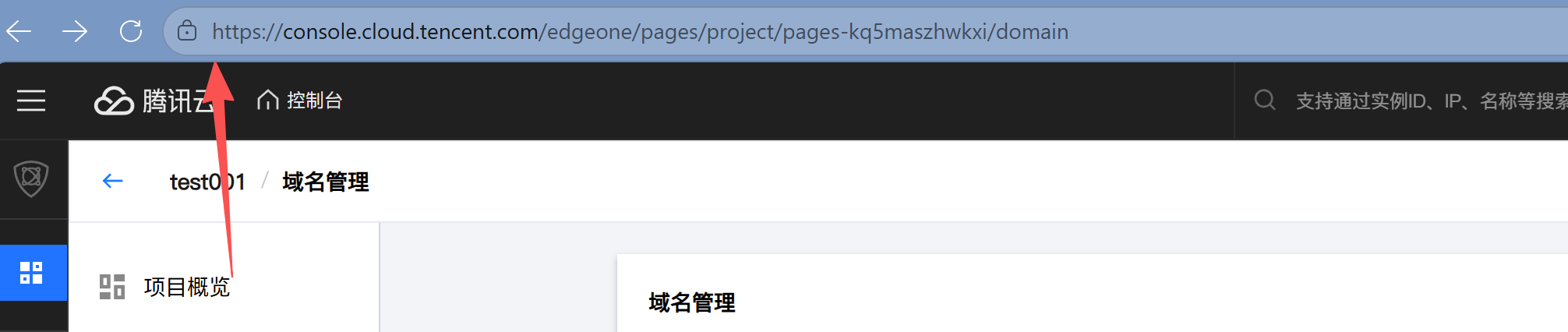
EdgeOne Pages: You need to manually click "Apply for Free Certificate" on the domain management page. Once the certificate is issued successfully, it will renew automatically, so you don’t need to worry about expiration
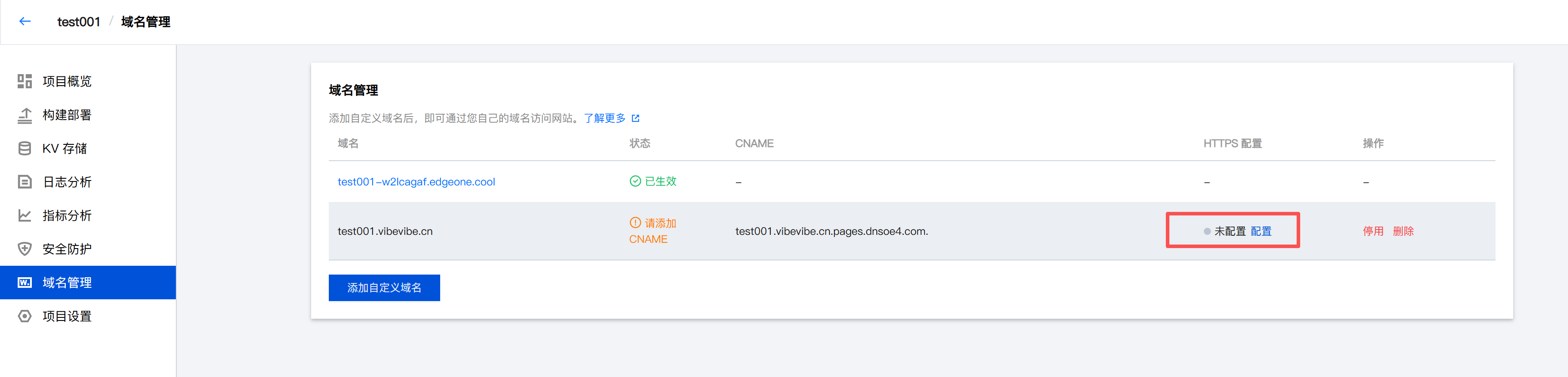
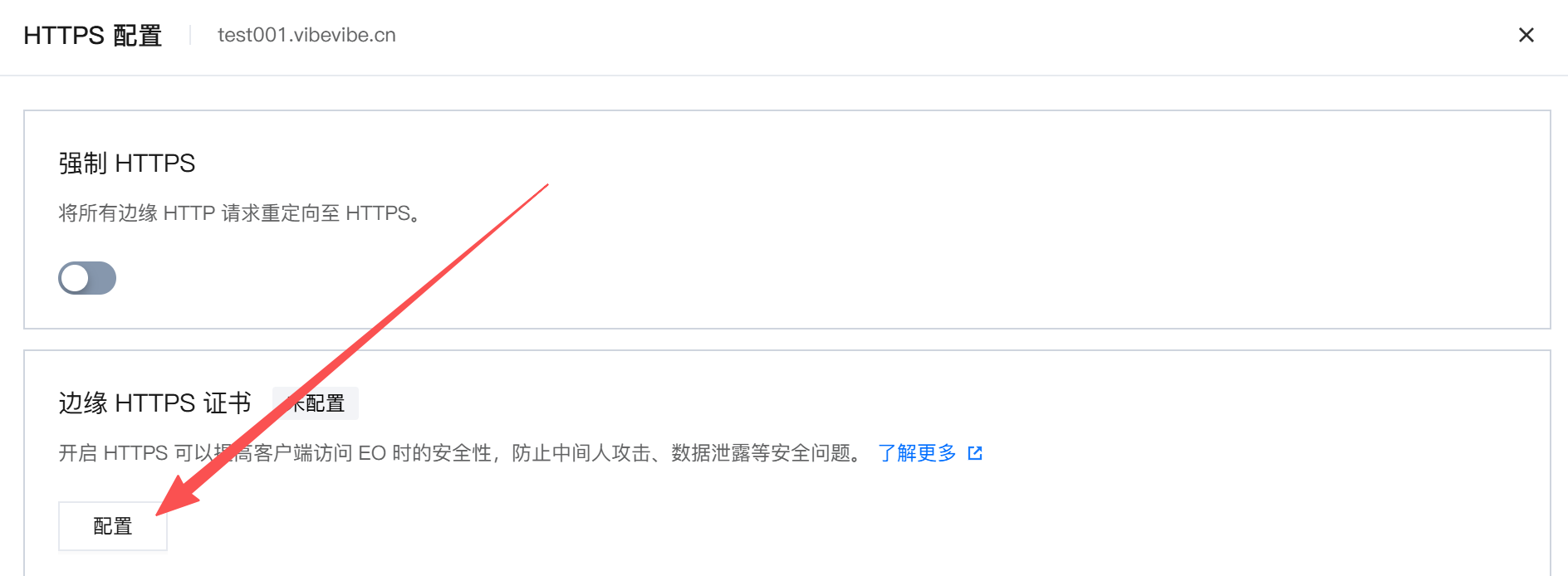
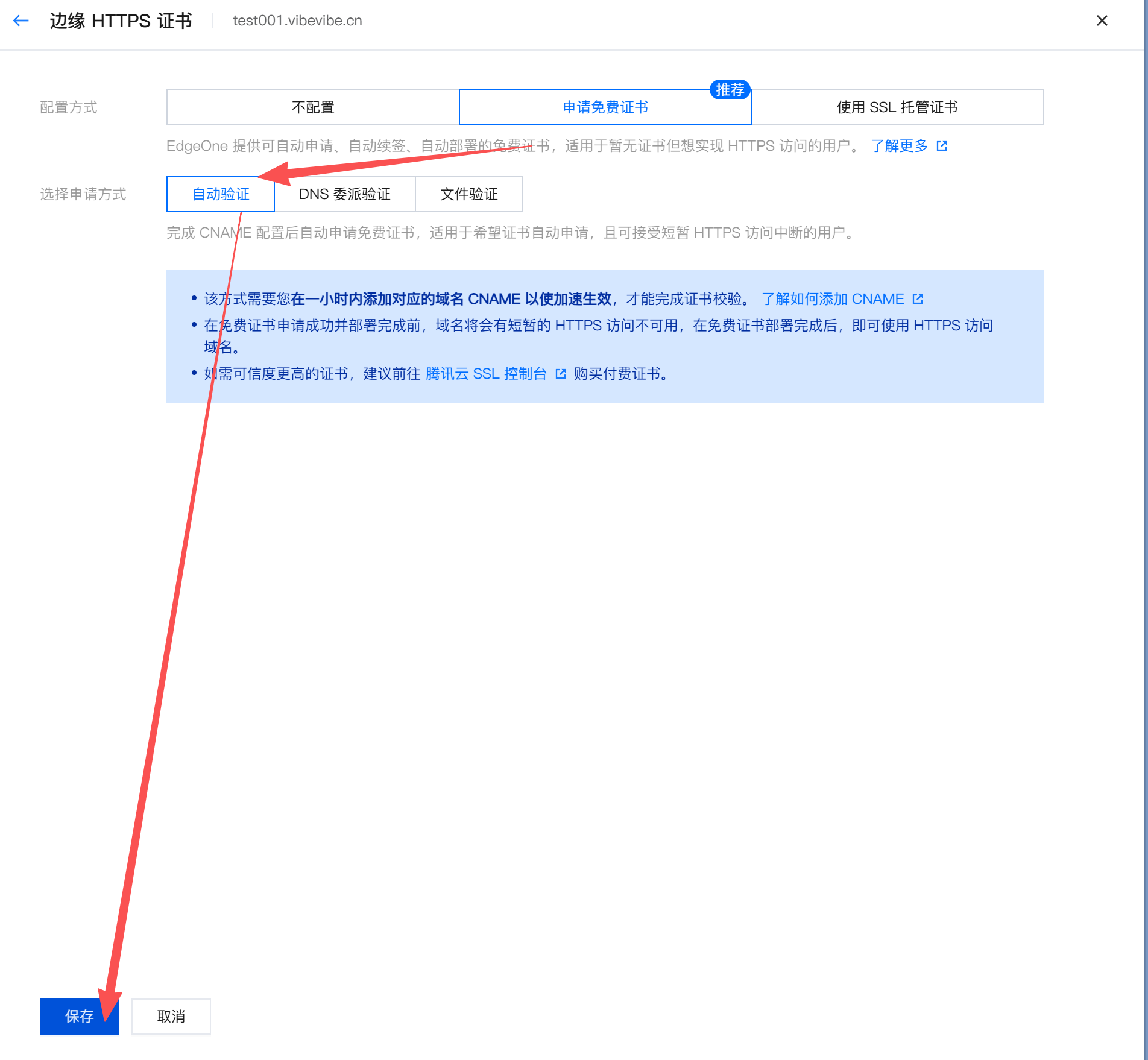
If you don’t see the lock icon after binding the domain, wait 5-15 minutes and refresh. Certificate issuance takes a little time.
Using AI to Assist with Configuration
If you get stuck at any point in the process—for example, if you’re not sure what to enter for the CNAME value, or whether the DNS record has taken effect—just tell Claude Code what’s going on. It can help you check your DNS configuration, troubleshoot resolution issues, and confirm certificate status.
This tutorial also includes an MCP configuration guide for Alibaba Cloud. Once configured, Claude Code can use MCP tools to interact directly with the Alibaba Cloud DNS API and help you complete DNS setup.
Frequently Asked Questions
Q: I added the CNAME, but the site still isn’t accessible. Why? DNS propagation takes time. Wait 10-30 minutes and try again. If it still doesn’t work after 24 hours, check whether the record was entered correctly.
Q: Can the root domain (myapp.com) use a CNAME? Strictly speaking, no (due to DNS specification limits), but platforms like Cloudflare automatically convert the CNAME into an IP address behind the scenes when responding, which works the same way in practice. If your registrar doesn’t support this, use www.myapp.com as the primary domain.
Q: How do I make www and the non-www version consistent? Add two records: @ and www, both pointing to the deployment platform. Then configure a redirect in the platform settings so one version forwards to the other.
Next step
Your domain is set up, and HTTPS is working too. If your project targets users in mainland China, you’ll need to understand ICP filing and compliance requirements next. Continue with 13.2 ICP Filing and Troubleshooting Access Issues.