
1.0 Quick Start
After reading this section, you will be able to:
- Install Git, Node.js, and Claude Code
- Configure the pnpm package manager and a China mirror to speed up downloads
- Set up the GLM model and start AI coding
This section provides the simplest and most straightforward setup process so you can start AI coding quickly.
Windows user? Start reading below. Mac/Linux user? Click here to jump to the installation guide
Windows Users
1. Install Git
Download:https://registry.npmmirror.com/-/binary/git-for-windows/v2.52.0.windows.1/Git-2.52.0-64-bit.exe
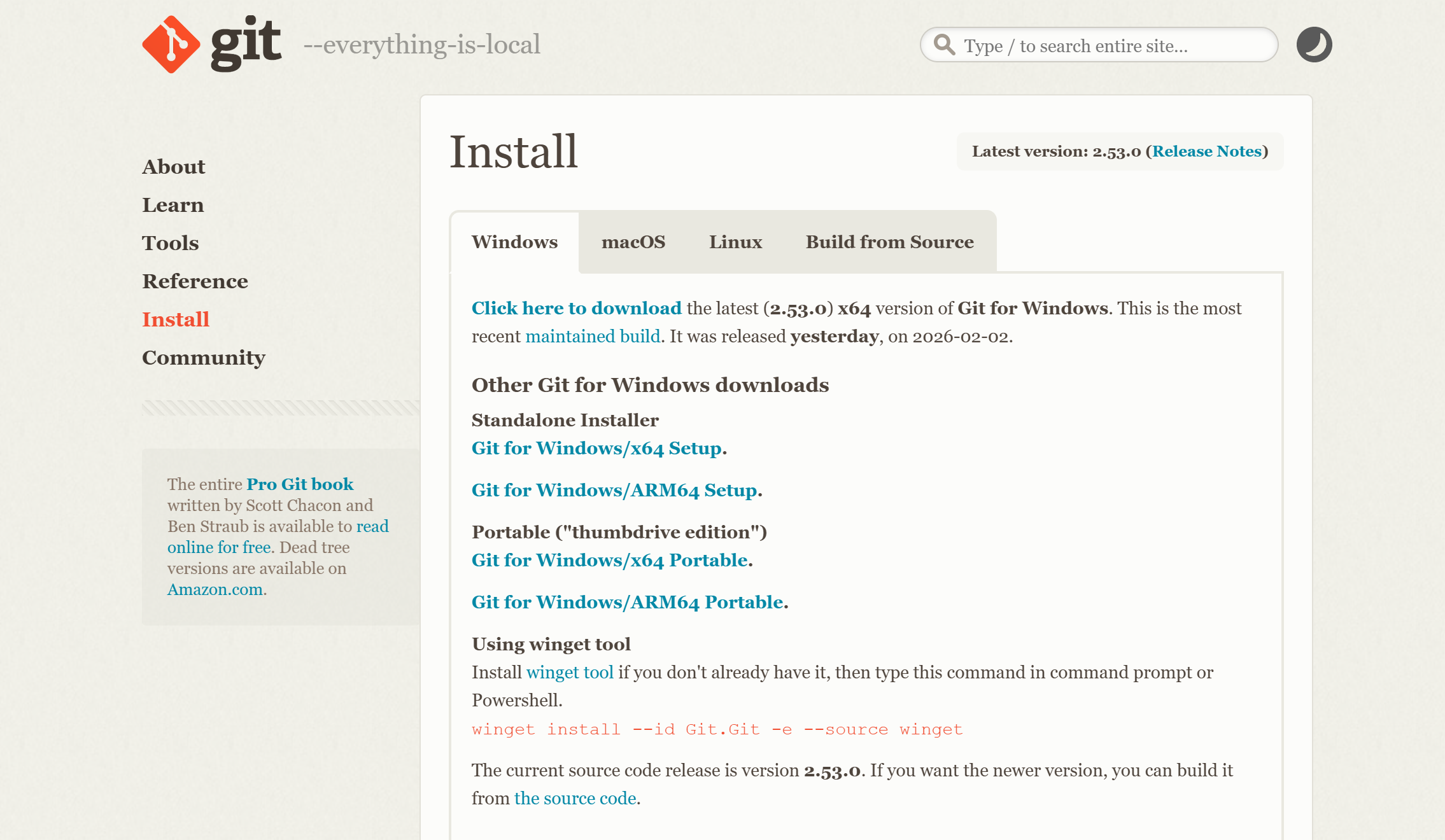
After downloading, double-click to install, and just keep clicking "Next" (skip if already installed).
2. Install Node.js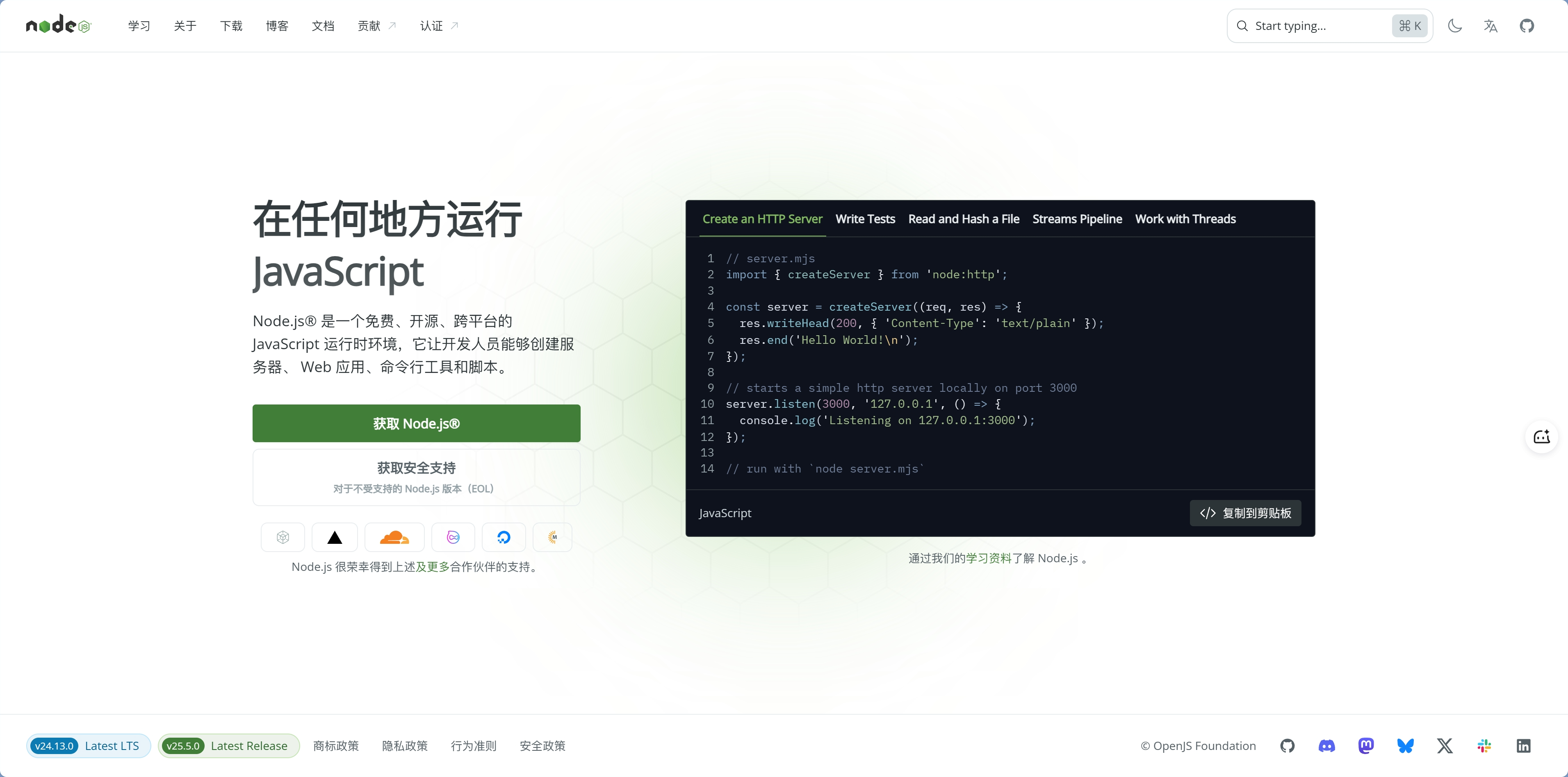
Download:https://npmmirror.com/mirrors/node/v24.13.0/node-v24.13.0-x64.msi
After downloading, double-click to install, and just keep clicking "Next" (skip if already installed).
3. Verify the Installation
Press Win + X, then choose Terminal (Admin) or Windows PowerShell, and run:
git --version
node -v
If version numbers are displayed, the installation was successful.
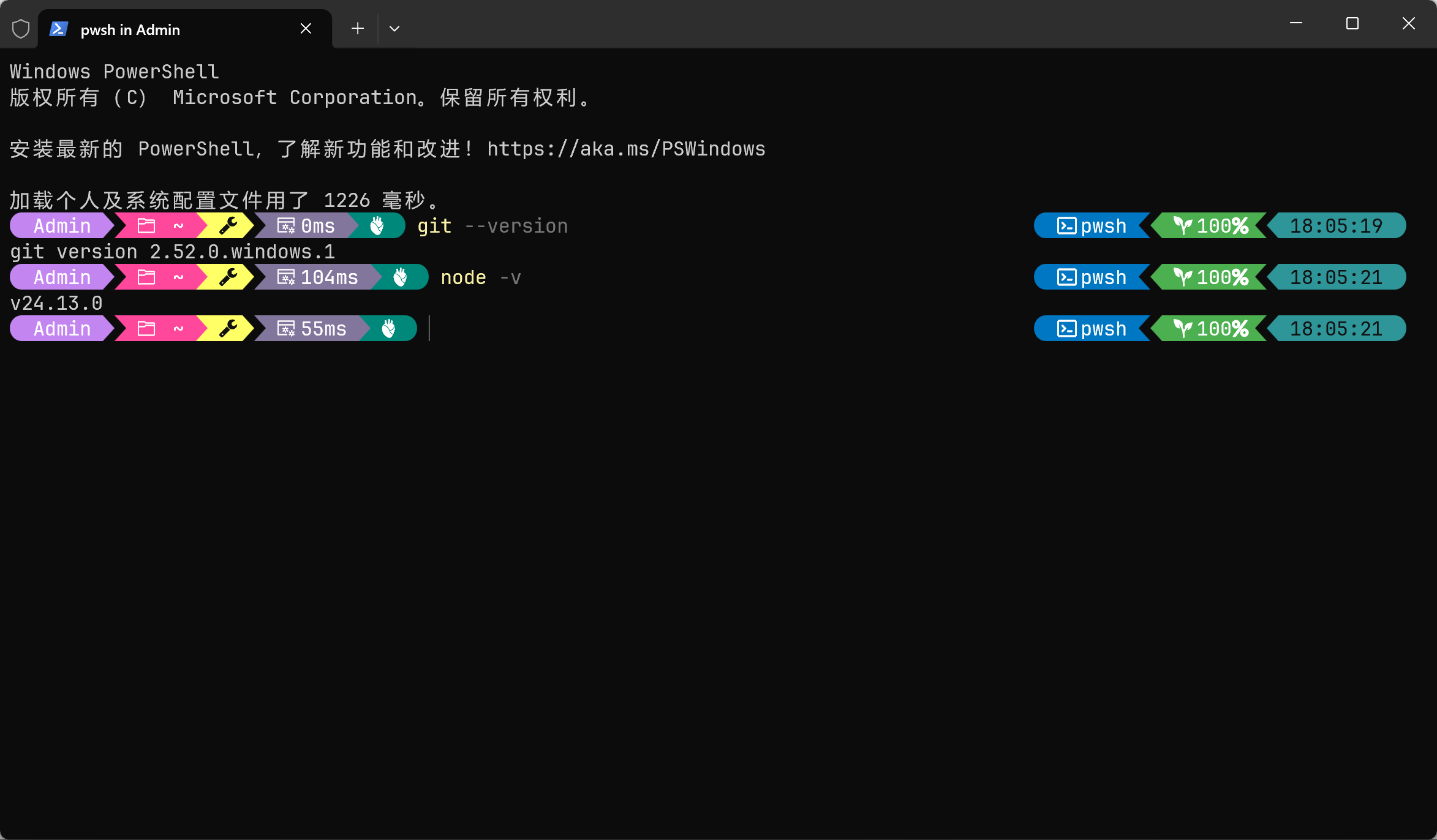
If you see a "command not recognized" message, close the terminal and open it again. If that still doesn't work, restart your computer.
4. Configure a China Mirror and Install pnpm
Run the following in PowerShell:
npm config set registry https://registry.npmmirror.com/; npm install -g pnpm; pnpm setup; pnpm config set registry https://registry.npmmirror.com/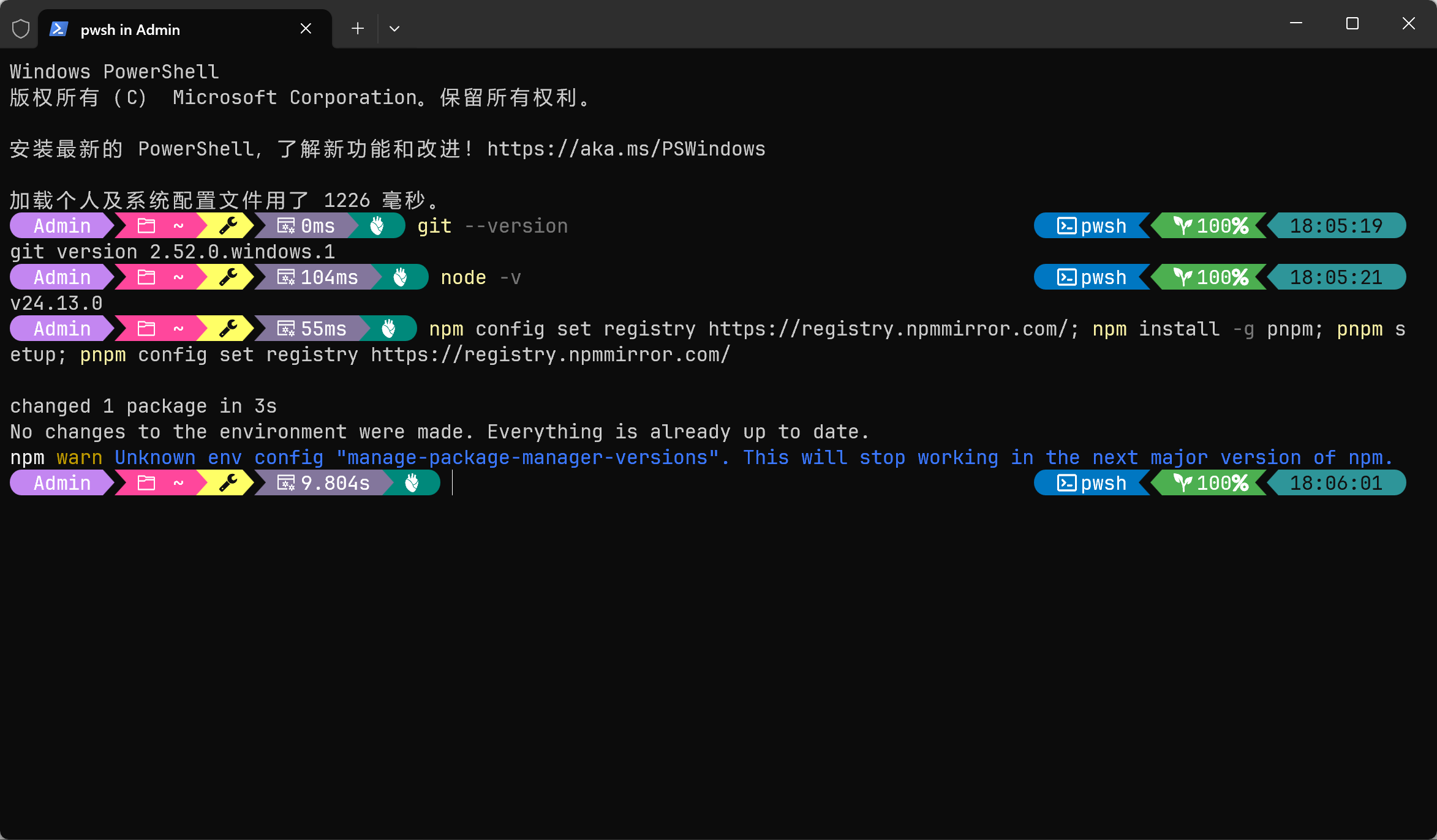
PowerShell execution policy error?
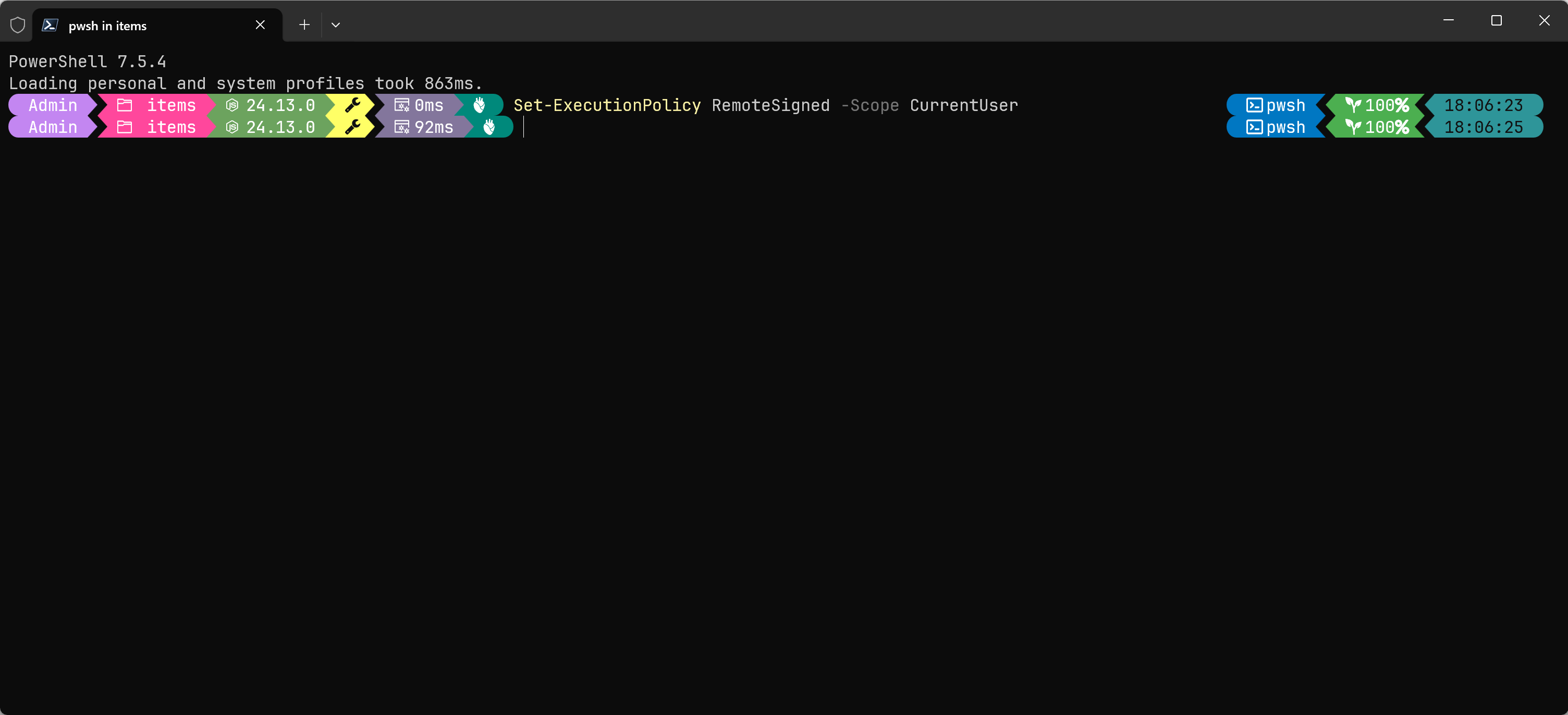
If you get the error "cannot load script because running scripts is disabled on this system" when running commands in PowerShell, start PowerShell as an administrator, then run:
Set-ExecutionPolicy RemoteSigned -Scope CurrentUserThen rerun the command above.
5. Install Claude Code
Run the following in PowerShell:
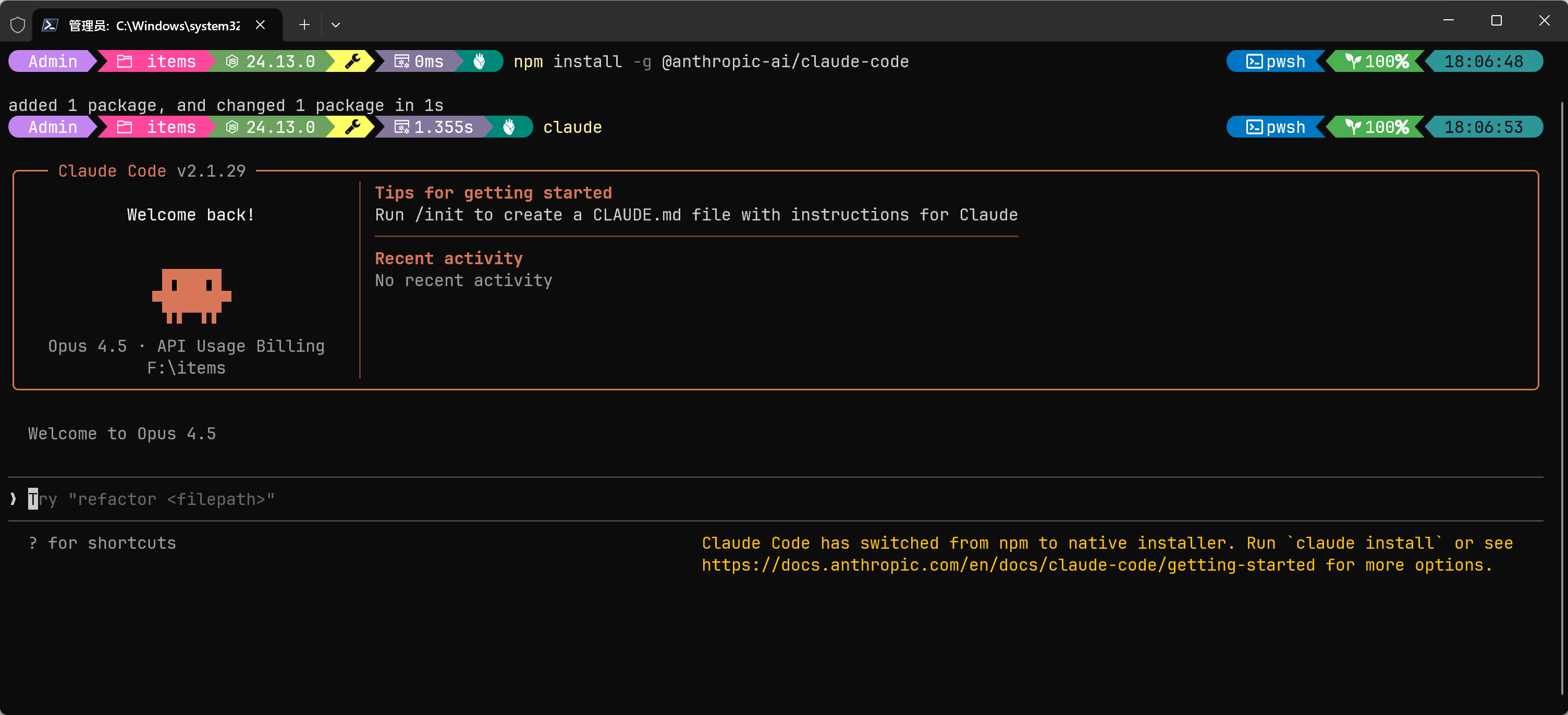
npm install -g @anthropic-ai/claude-codeAfter the installation finishes, run:
claudeIf you see the Claude Code welcome screen, the installation was successful!
If you see "No suitable shell found"
This means Git was not installed correctly. Please set the environment variable:
Press
Win + Sand search for "environment variables"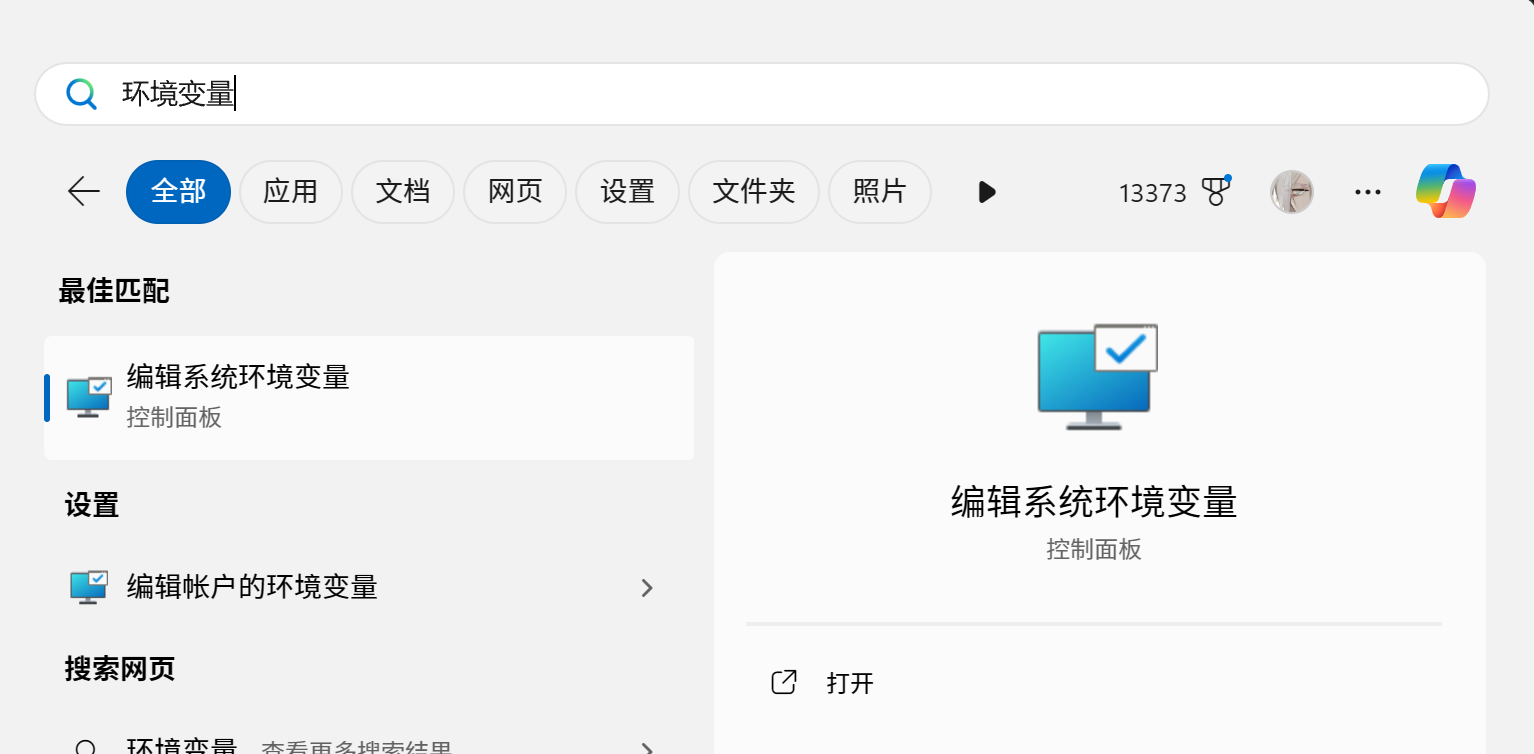
Click "Edit the system environment variables"
Click "Environment Variables"
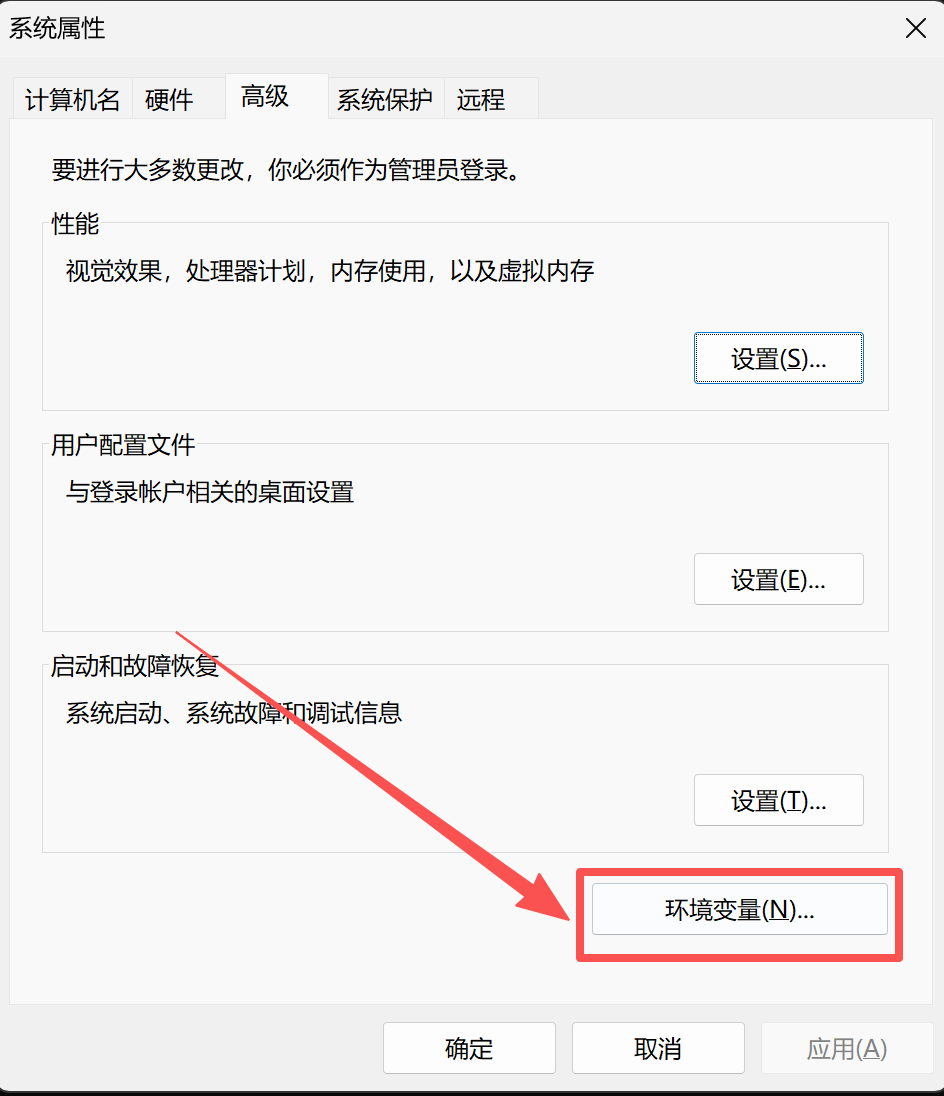
Under "System variables", click "New"
Variable name:
CLAUDE_CODE_GIT_BASH_PATHVariable value:
C:\Program Files\Git\bin\bash.exe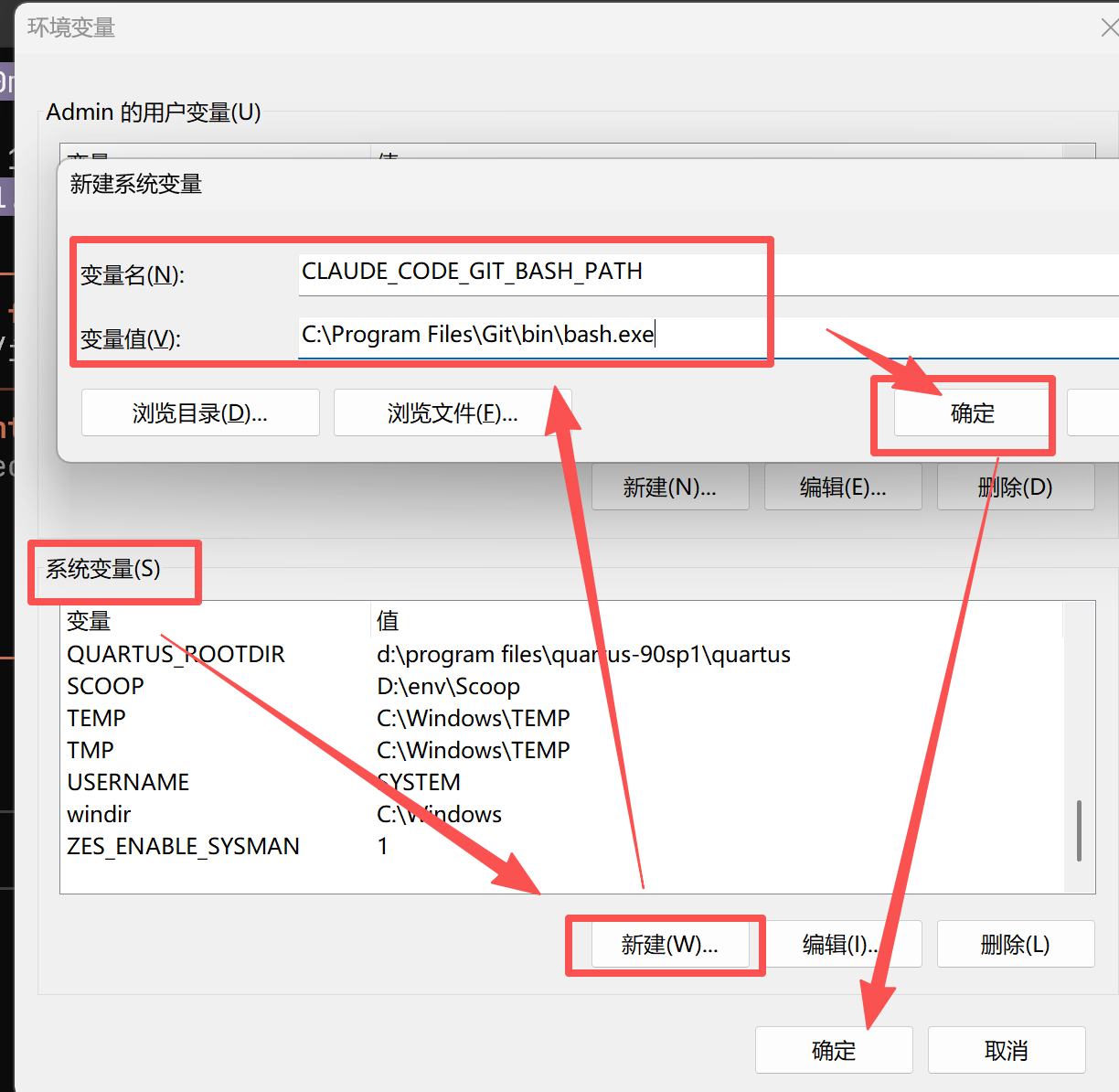
Click OK to save, then restart PowerShell and try again
If it still doesn't work, uninstall Git and reinstall it.
Mac/Linux Users
1. Install Git
macOS:
- The first time you type
gitin Terminal, you'll be prompted to install the Xcode Command Line Tools. Just click Install. - Or run it manually:
xcode-select --install - If you want the latest version, use Homebrew:
brew install git
Linux:
# Ubuntu/Debian
sudo apt update && sudo apt install git -y

# CentOS/RHEL
sudo yum install git -y
2. Open Terminal
- Mac: Press
Cmd + Space, then type "Terminal" - Linux: Press
Ctrl + Alt + T
3. Run the Environment Initialization Script
This script will automatically install Node.js, pnpm, and configure a China mirror:
macOS:
curl -fsSL https://cnb.cool/vibevibe/scripts/-/git/raw/main/init-node-mac.sh | sed 's/\r$//' | sh && npm install -g pnpm && pnpm config set registry https://registry.npmmirror.com/ && pnpm setupLinux:
curl -fsSL https://cnb.cool/vibevibe/scripts/-/git/raw/main/init-node-linux.sh | sed 's/\r$//' | shAfter the script finishes, please reopen the terminal window (or run source ~/.bashrc / source ~/.zshrc) to apply the configuration.
This script automatically sets up the following: nvm (Node Version Manager, used to switch between Node.js versions), Node.js (the JavaScript runtime used to execute TypeScript code), pnpm (a package manager that is faster and more space-efficient than npm), and a China mirror (configures the Taobao mirror to speed up dependency downloads).
3. Verify the Installation
git --version
node -v
If version numbers are displayed, the installation was successful.
4. Install Claude Code
npm install -g @anthropic-ai/claude-codeAfter the installation finishes, run:
claudeIf you see the Claude Code welcome screen, the installation was successful!
Configure the GLM Model
Claude Code uses Anthropic's official Claude models by default, but you can also configure a domestic model such as GLM, which is more affordable and faster to access.
Step 1: Get an API Key
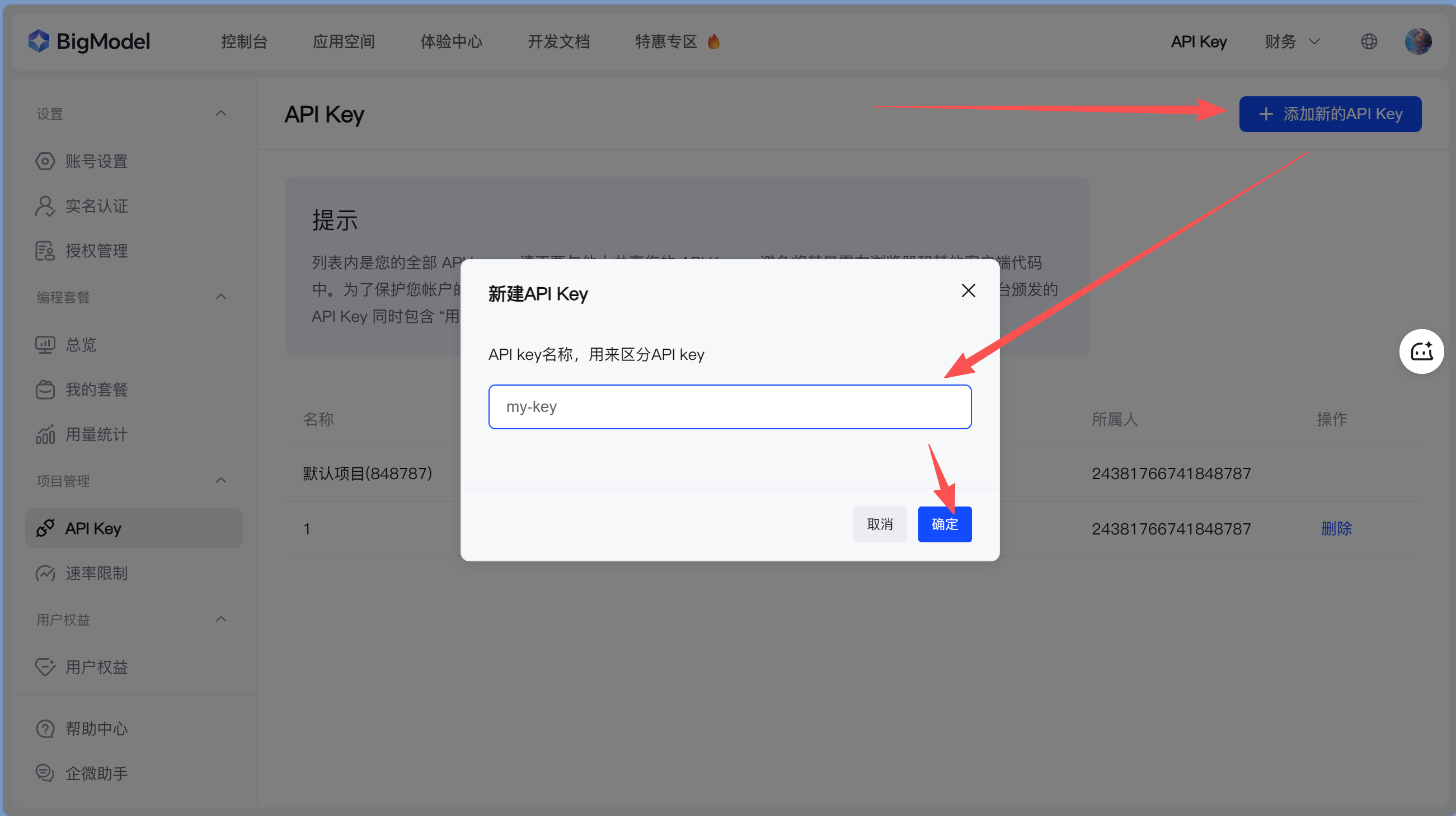
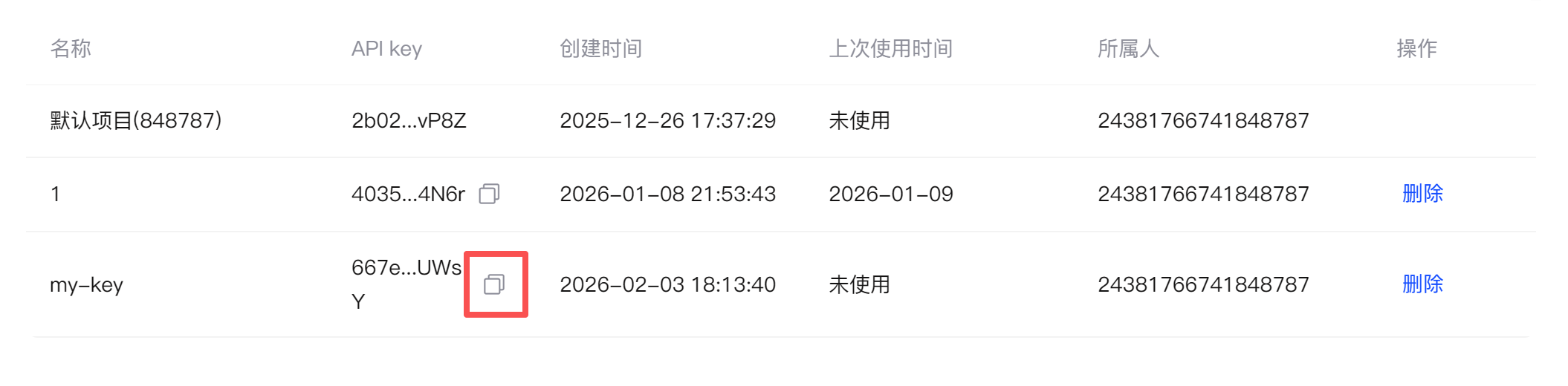
Visit the Zhipu Open Platform, click the "Sign Up / Log In" button in the upper-right corner, and follow the prompts to complete account registration. After logging in, go to your personal center page, click API Keys, and create a new API Key.
Step 2: One-click helper install - automatic configuration
Run the following in Terminal/PowerShell:
npx @z_ai/coding-helper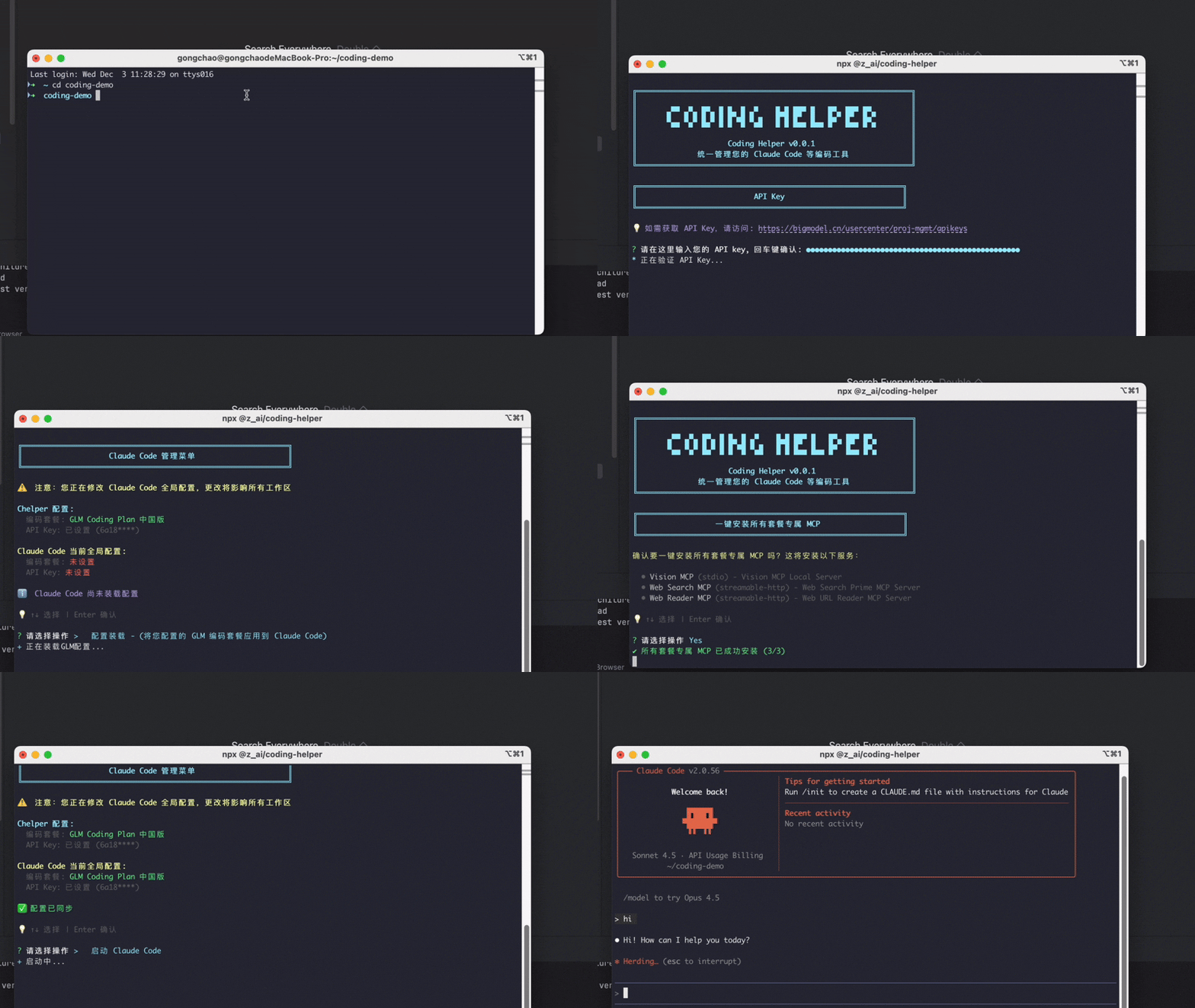
Enter the API Key you obtained, and the tool will automatically complete all configuration steps.
Step 3: Verify the Configuration
claudeClaude Code will now use the GLM model to answer your questions.
Official documentation
For more configuration details, see GLM Official Documentation - Claude Code Configuration Guide.
Need to manage multiple model providers?
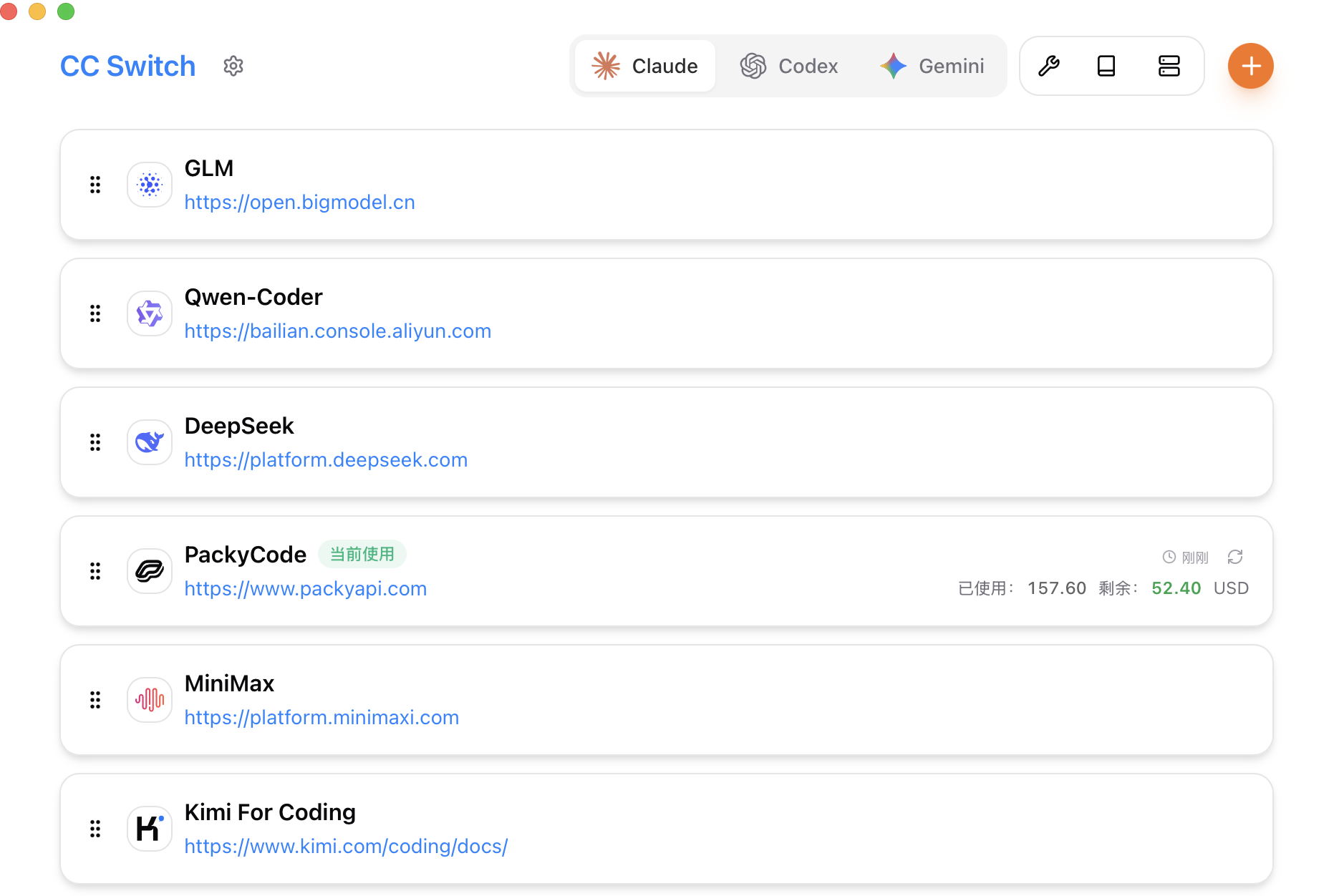
If you need to frequently switch between different AI model providers (such as GLM, DeepSeek, OpenAI, etc.), you can use cc-switch — a desktop GUI configuration management tool that supports Claude Code, Codex, and Gemini CLI. It lets you switch API configurations with one click, centrally manage MCP servers and Skills, and supports speed testing and quick switching from the system tray.
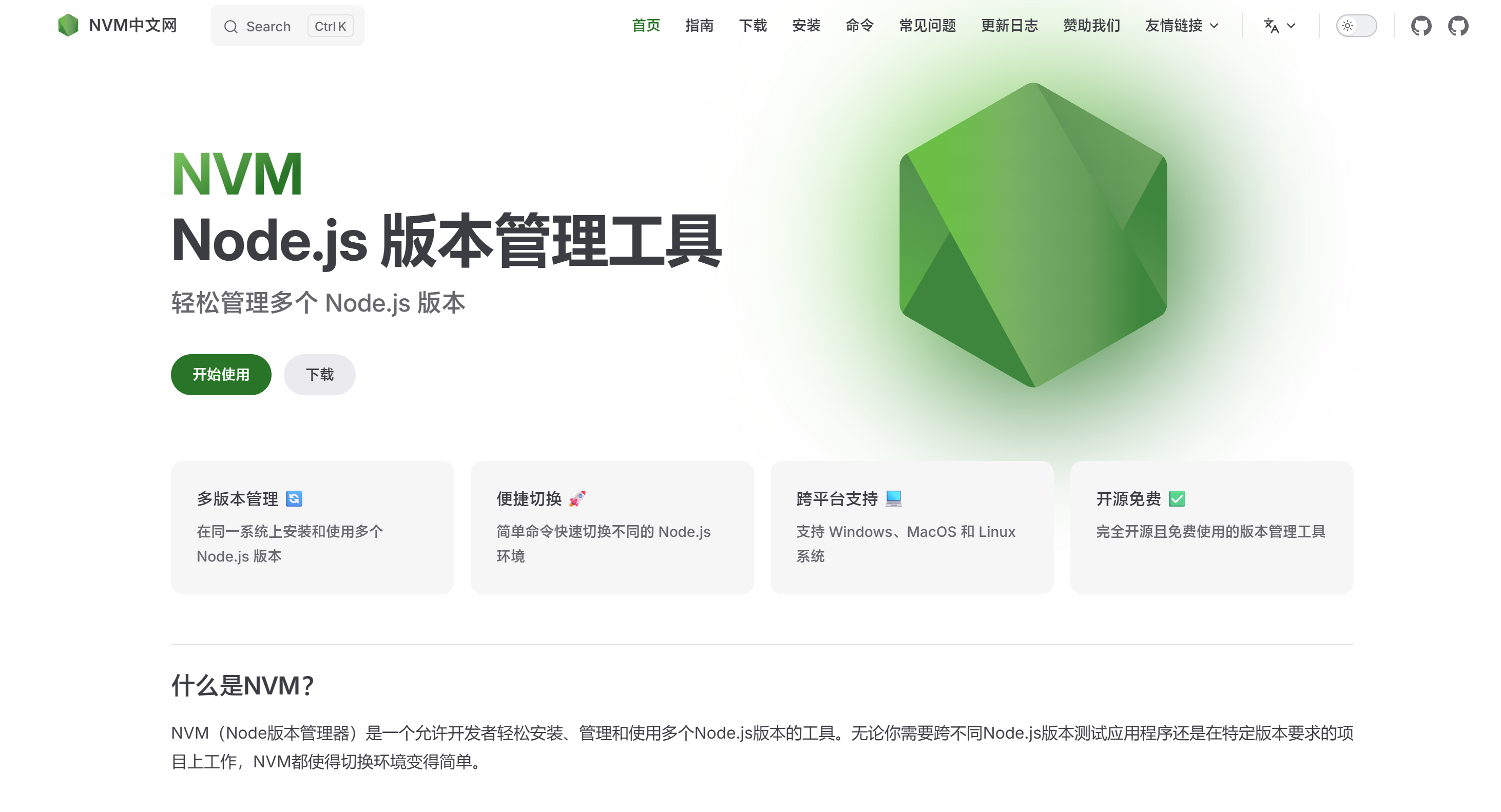
About nvm (Optional)
The initialization script for Mac/Linux users automatically installs nvm (Node Version Manager). If Windows users want to manage multiple Node.js versions, you can install nvm:
Download link:https://ghfast.top/https://github.com/coreybutler/nvm-windows/releases/download/1.2.2/nvm-setup.zip
Or:https://nvm.uihtm.com/nvm-1.2.2-setup.zip
Set the mirror after installation:
nvm node_mirror https://npmmirror.com/mirrors/node/
nvm npm_mirror https://npmmirror.com/mirrors/npm/
Common commands:
nvm install 24.13.0  # Install a specific version
nvm use 24.13.0      # Use a specific version
nvm list             # View installed versions
🔄 Click to try it: Node Version Manager
Try switching between different Node.js versions:
nvm list查看版本nvm use 22切换版本nvm install 20安装版本💡 Practice: Click different versions to switch and observe how the current version changes.
🎯 Core concept: nvm lets you manage multiple Node.js versions on the same computer.
FAQ
Q: Ran into an error during installation?
Copy the error message and give it to an AI assistant. It will help you solve it.
Q: Do I have to use GLM?
No. Claude Code uses Anthropic's official Claude models by default, but accessing them from mainland China requires a relay service. GLM is a highly cost-effective alternative, and you can also configure other domestic models such as Minimax, Doubao, and Qwen.
Q: I already installed Node.js separately. Can I still install nvm?
Yes. nvm manages its own separate Node.js versions and won't affect the version you previously installed. After installing nvm, you can use nvm use to switch versions or nvm install to install new ones.
Next Steps
After finishing the environment setup, continue reading: