
14.3.1 App Store and Docker Basics
Goal for this section: Understand Docker's core concepts and learn to install and manage various services with one-click using 1Panel's App Store.
Xiao Ming opened 1Panel's App Store and saw databases, web servers, and monitoring tools neatly arranged—"Isn't this just like a mobile app store? Click and it's installed."
What Exactly is Docker?
The old-timer said: "The apps on your phone are installation packages downloaded from the app store—click and they're installed. Docker follows the same idea, but for servers."
- Image: Like an installation package in the app store. A "PostgreSQL 18 image" is a packaged database installer containing all necessary files and configurations.
- Container: Like an app running on your phone. The difference is, here the same installation package can be installed multiple times, each running independently without affecting the others.
- Registry: Like an app store. Docker Hub is the largest "server app store," with hundreds of thousands of ready-to-use application packages.
Why Use Docker?
Without Docker, you'd have to manually install PostgreSQL, configure Redis, tune OpenResty on your server... Each software has a different installation method, and version conflicts and missing dependencies are common. With Docker, every application runs in its own "shipping container," isolated from others. If you mess up, just delete and start over—your server system stays clean.
1Panel App Store
1Panel wraps Docker operations into a graphical interface. Open the panel's "App Store" and you'll see various commonly used software—click to install.
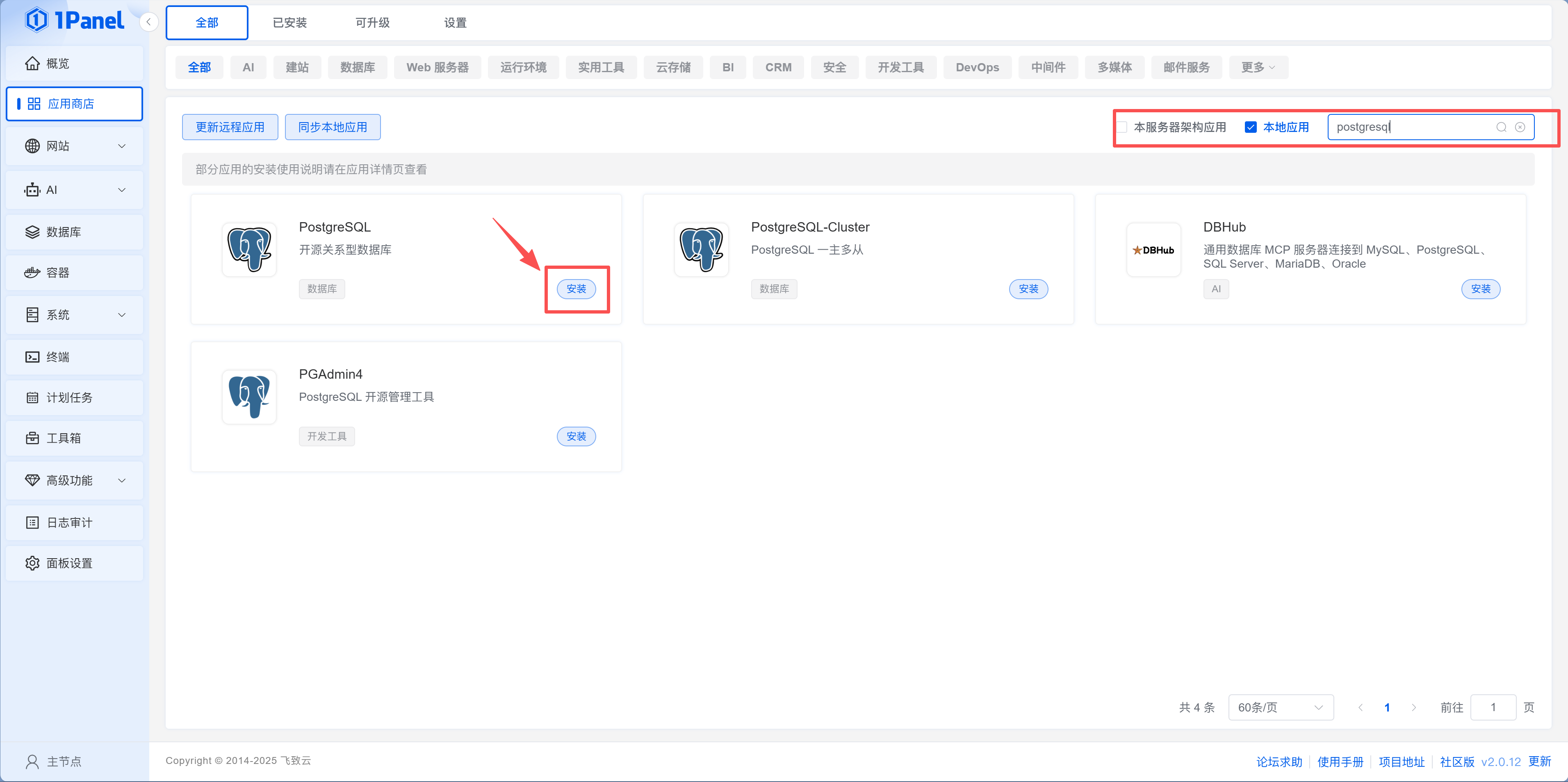
Common applications at a glance:
| Application | Purpose | Installation Recommendation |
|---|---|---|
| PostgreSQL | Relational database | Essential for projects, set a strong password |
| Redis | Cache database | Install when you need caching or session management |
| OpenResty | Web server/reverse proxy | Required when binding a domain name |
| Node.js | Run Node.js projects | Needed when deploying Next.js and similar projects |
What is OpenResty?
OpenResty is a high-performance web server built on Nginx. Its functions are:
- Handle HTTP requests: Receive user access requests
- Serve static files: Return HTML, CSS, JS, images, etc.
- Reverse proxy: Forward API requests to backend services
- Bind domain names: Let your website be accessed via domain name
Simply put, OpenResty is the "front door" of your website—when users visit your domain, OpenResty is the first to greet them. If you want to bind a domain (like yourdomain.com), you must install OpenResty.
Xiao Ming searched for PostgreSQL in the App Store and clicked "Install" to enter the application details page. The configuration popup asked him to fill in the port number, admin username, and password. In "Advanced Settings," he could choose whether to expose external ports, set resource limits, etc. He filled in the information as prompted and clicked confirm—a log window popped up, the progress bar ran for a dozen seconds, and the status changed to "Running." The whole process was much simpler than he imagined. After installation, he could see this application on the "App Store - Installed" page.
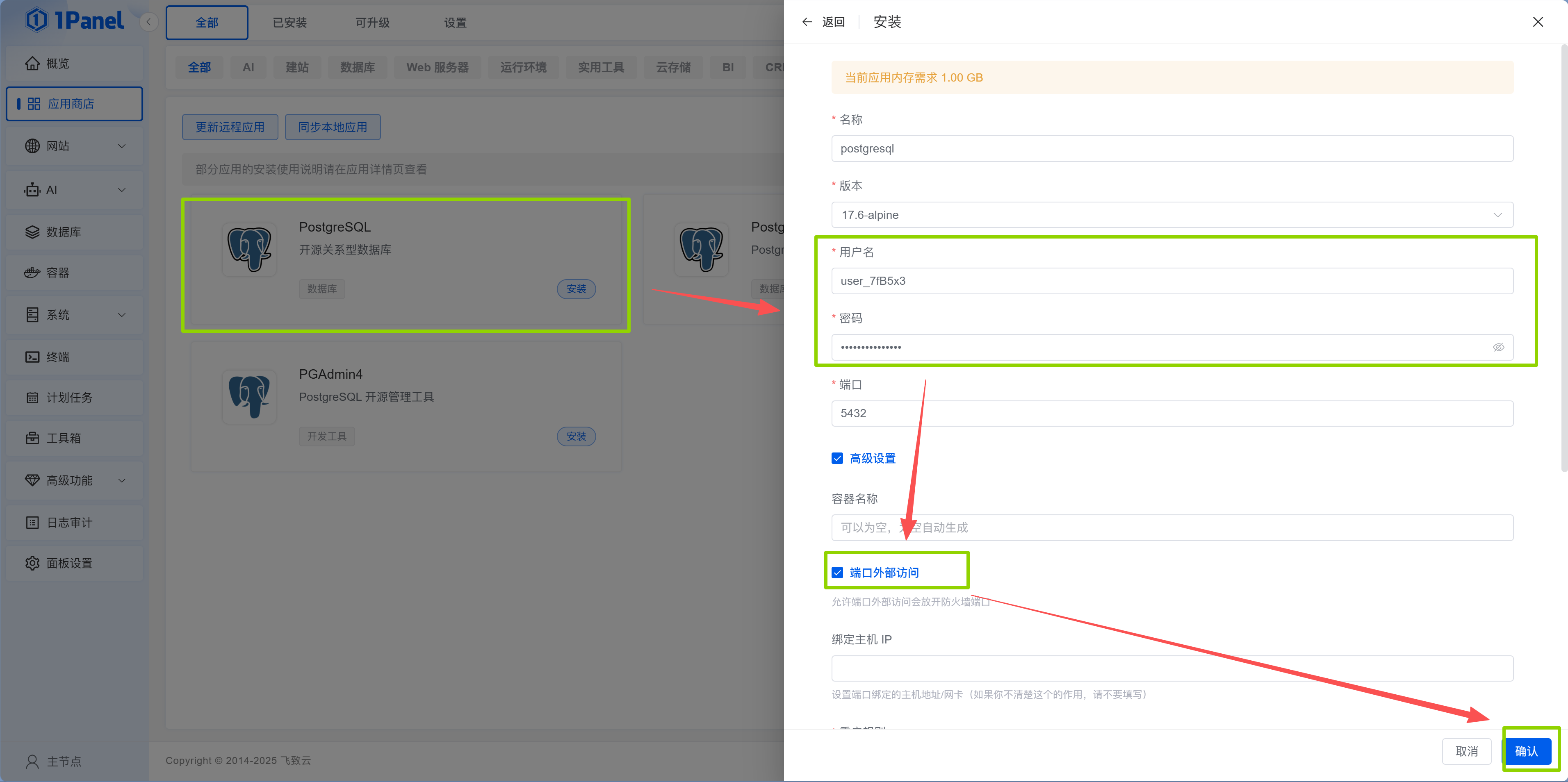
During installation, 1Panel will ask you to fill in some configurations (port, password, etc.). The old-timer reminded: "Be sure to write down the password you set during installation, you'll need it for environment variable configuration later."
Image pull failed? Configure mirror acceleration
If image pull times out during application installation, check whether the mirror acceleration address is configured on the "Containers > Configuration" page. If you selected automatic acceleration configuration when installing Docker, this is usually already filled in.
Application installation example: Using Halo blog system
Halo is an open-source blog system that can be installed with one click in the 1Panel App Store. The following shows the complete installation and initialization process to help you understand how the App Store works.
Database selection: During installation, you need to select the database type (PostgreSQL or MySQL) 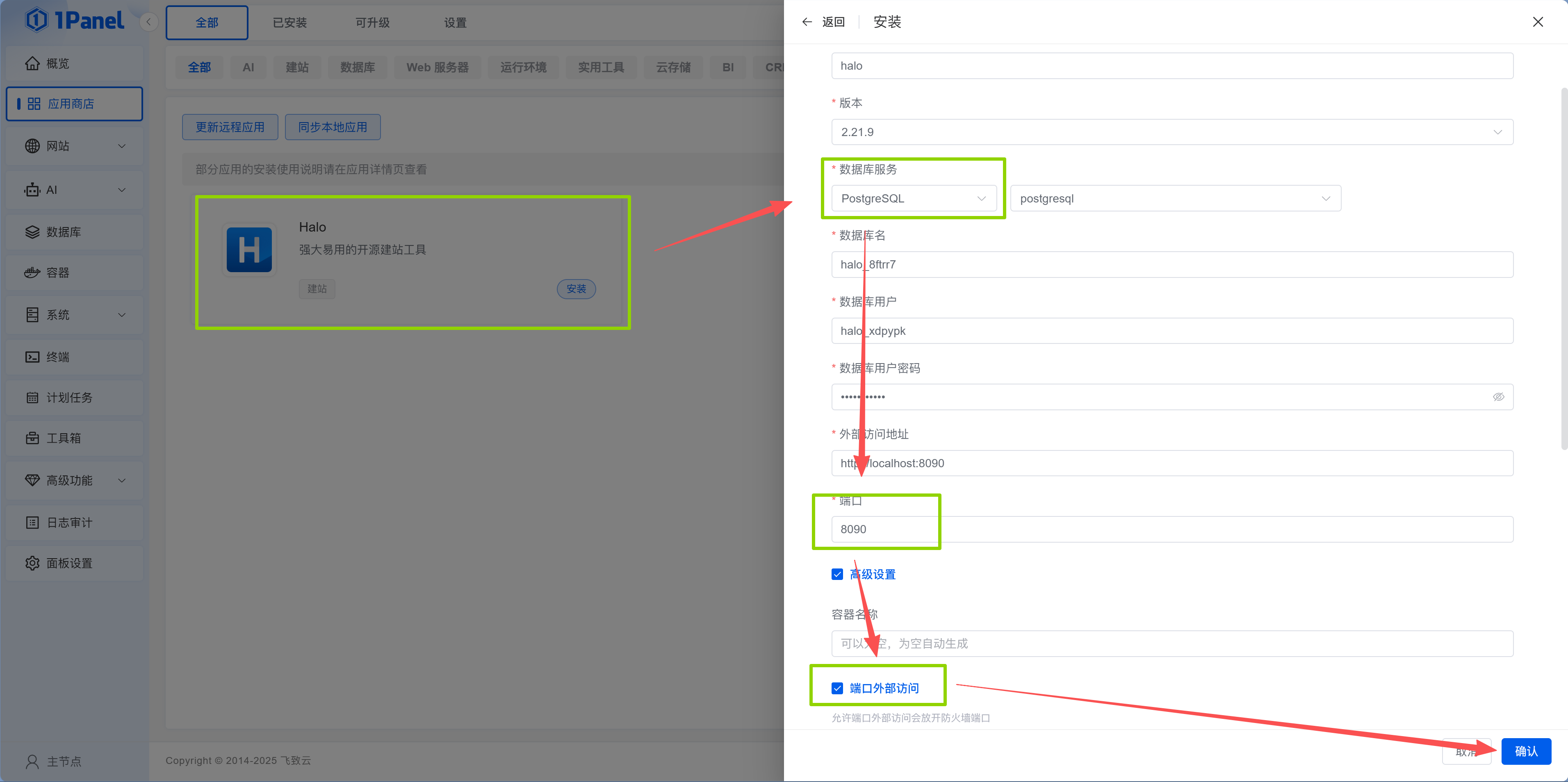
Initialization configuration: First access enters the initialization wizard 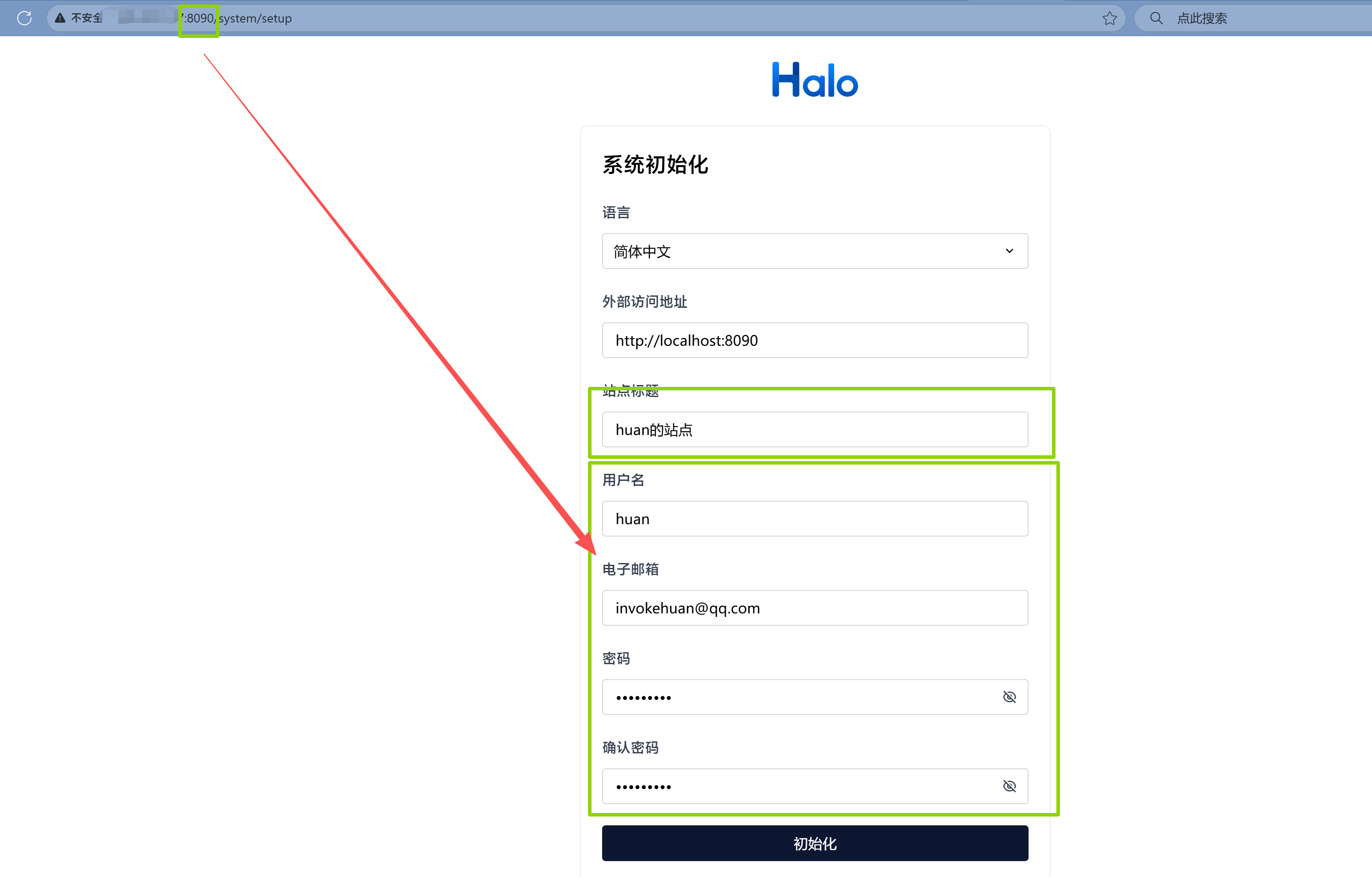
User settings: Create an admin account 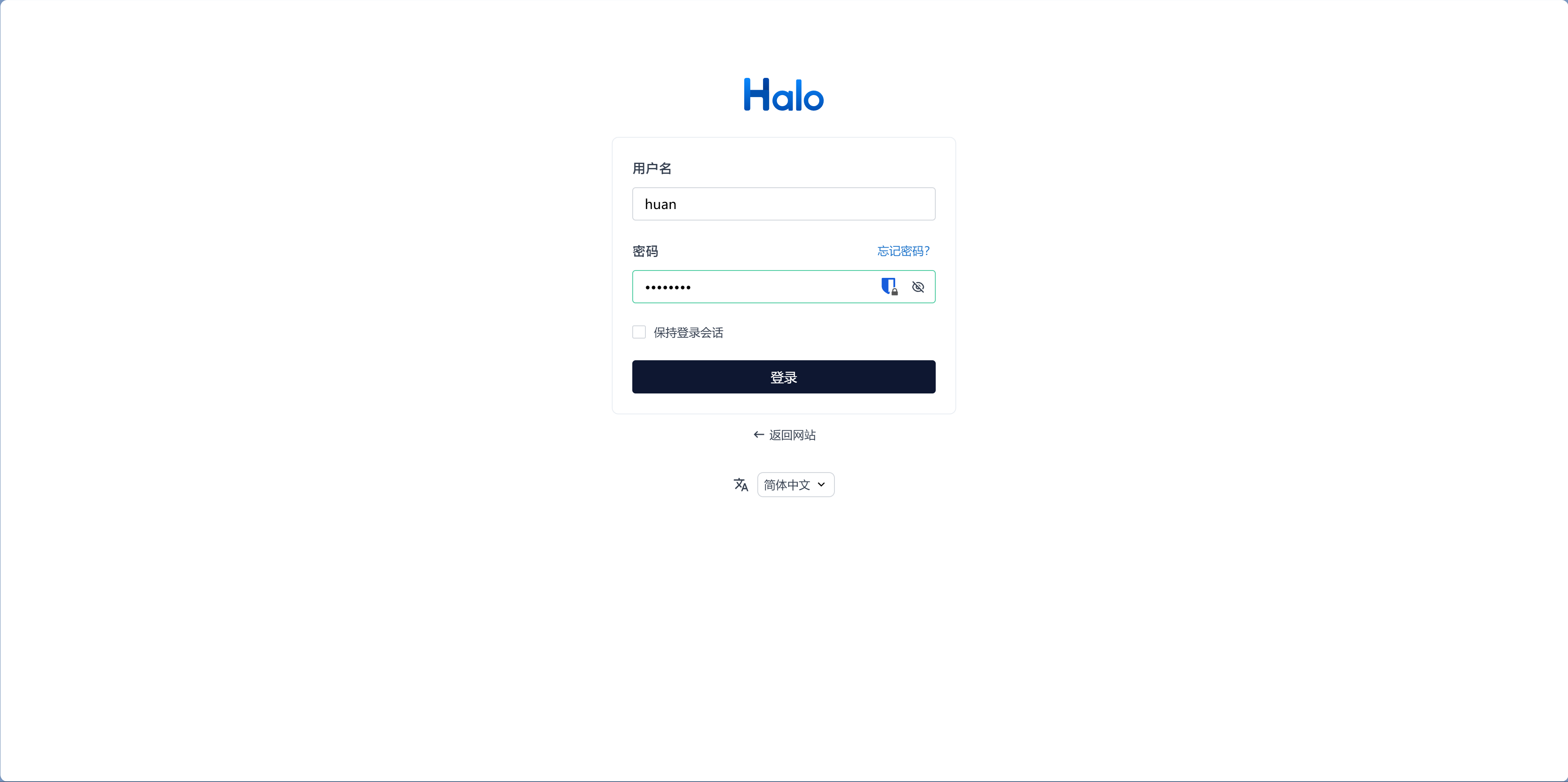
Admin dashboard: Management interface after installation 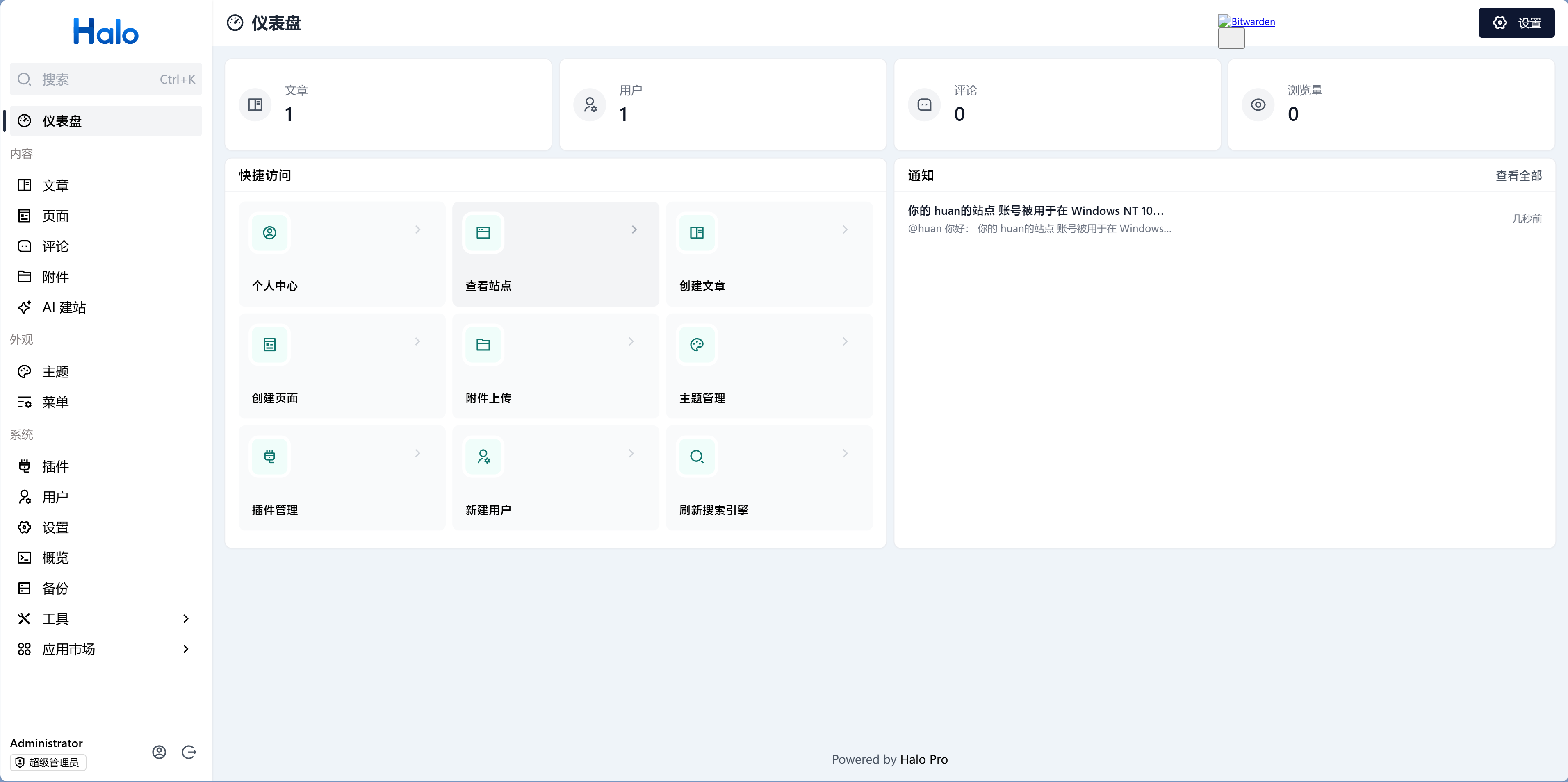
Frontend view: Visitor view of the blog 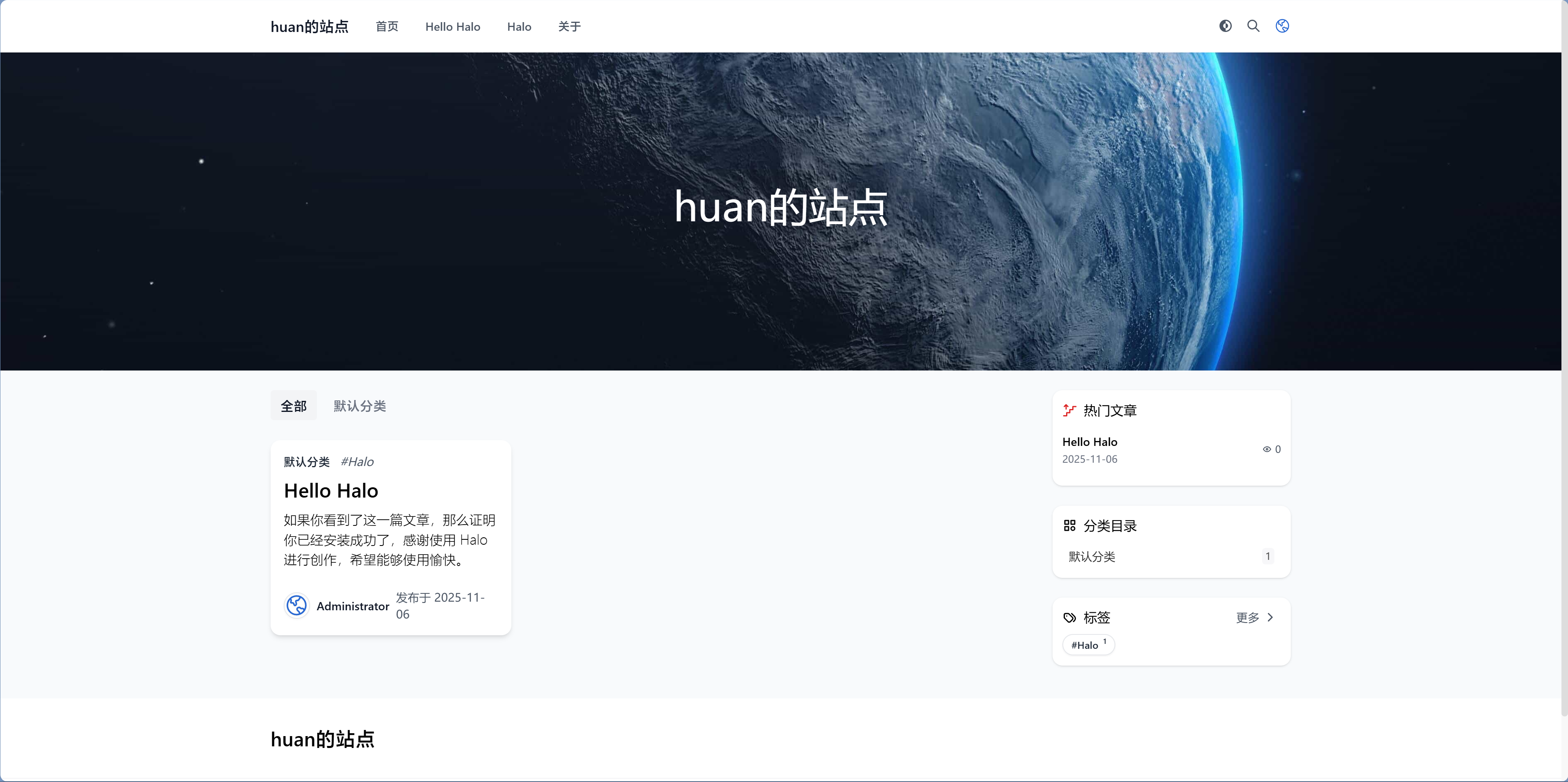
Plugin ecosystem: Supports extending functionality through plugins 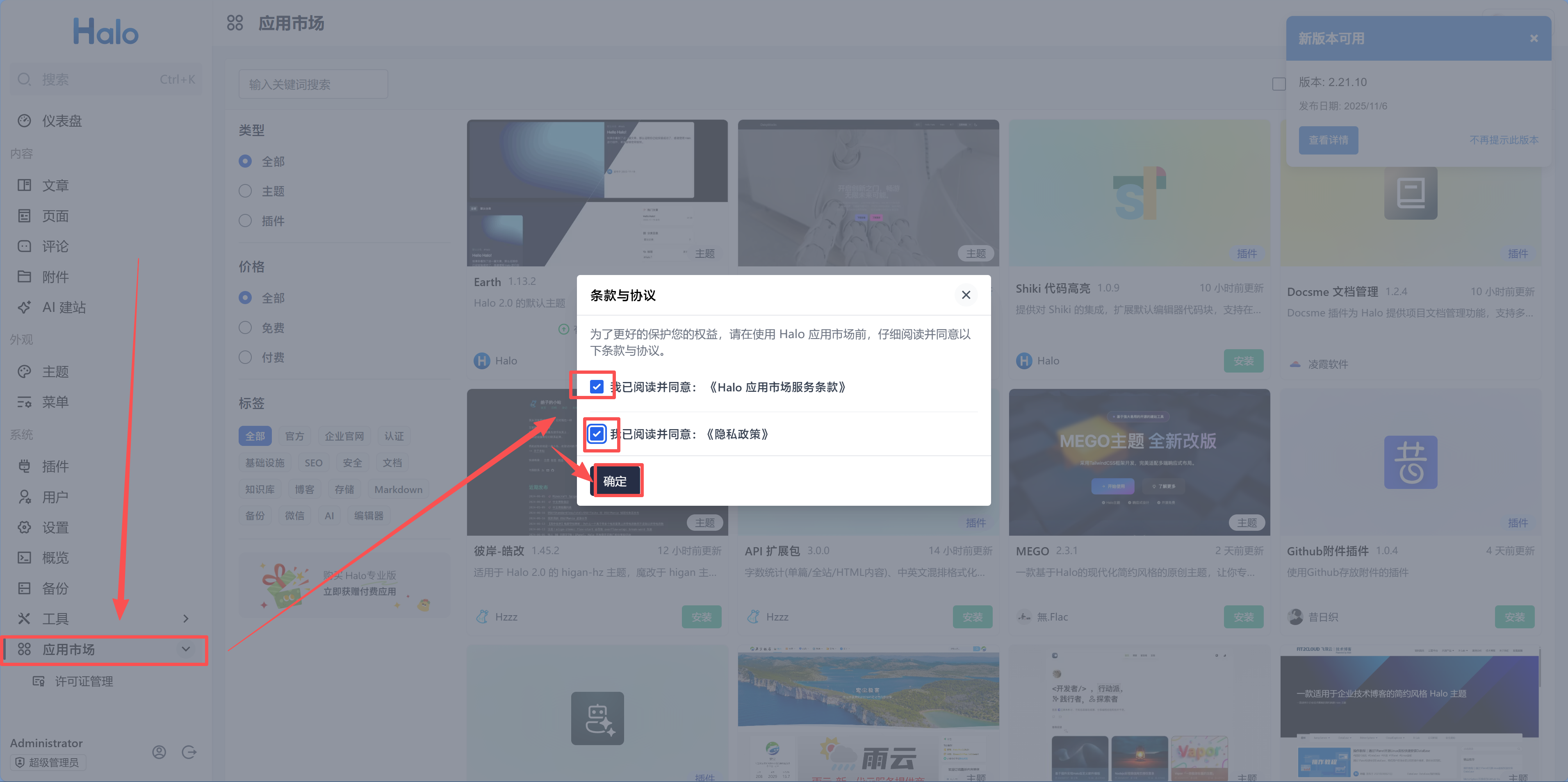
This process demonstrates the typical steps of App Store installation: select configuration → wait for installation → initialize settings → start using. Other applications (like Umami, n8n) follow similar installation processes.
DBMS vs Database: First Step After Installing the Database
After Xiao Ming installed PostgreSQL, the old-timer asked him to go to the "Database - PostgreSQL" page in the left sidebar menu to create a specific database (like my_app_db).
"Wait, didn't I just install the database? Why do I need to create another one?"
The old-timer explained: "What you installed is the database software (DBMS), like installing Excel software. But you haven't created a .xlsx file yet. Installing PostgreSQL once allows you to create countless independent databases for different projects."
Xiao Ming clicked "Create Database" on the "Database - PostgreSQL" page, filled in the database name, username, password, selected access permissions, and created it in seconds. Clicking the "Connection Info" button above the list, he saw the address, port, admin username, and password—these are what he'll use when configuring .env later.
DBMS vs Database
- DBMS (Database Management System): Like PostgreSQL, MySQL—software that manages data
- Database: A specific database created within the DBMS, like
myapp_db
Analogy: The DBMS is a building, the Database is a room in that building. What you install from the 1Panel App Store is the "building" (DBMS), then you create "rooms" (Databases) inside for your applications to use.
For detailed database design and operations, see Chapter 6 "Data Persistence and Databases".
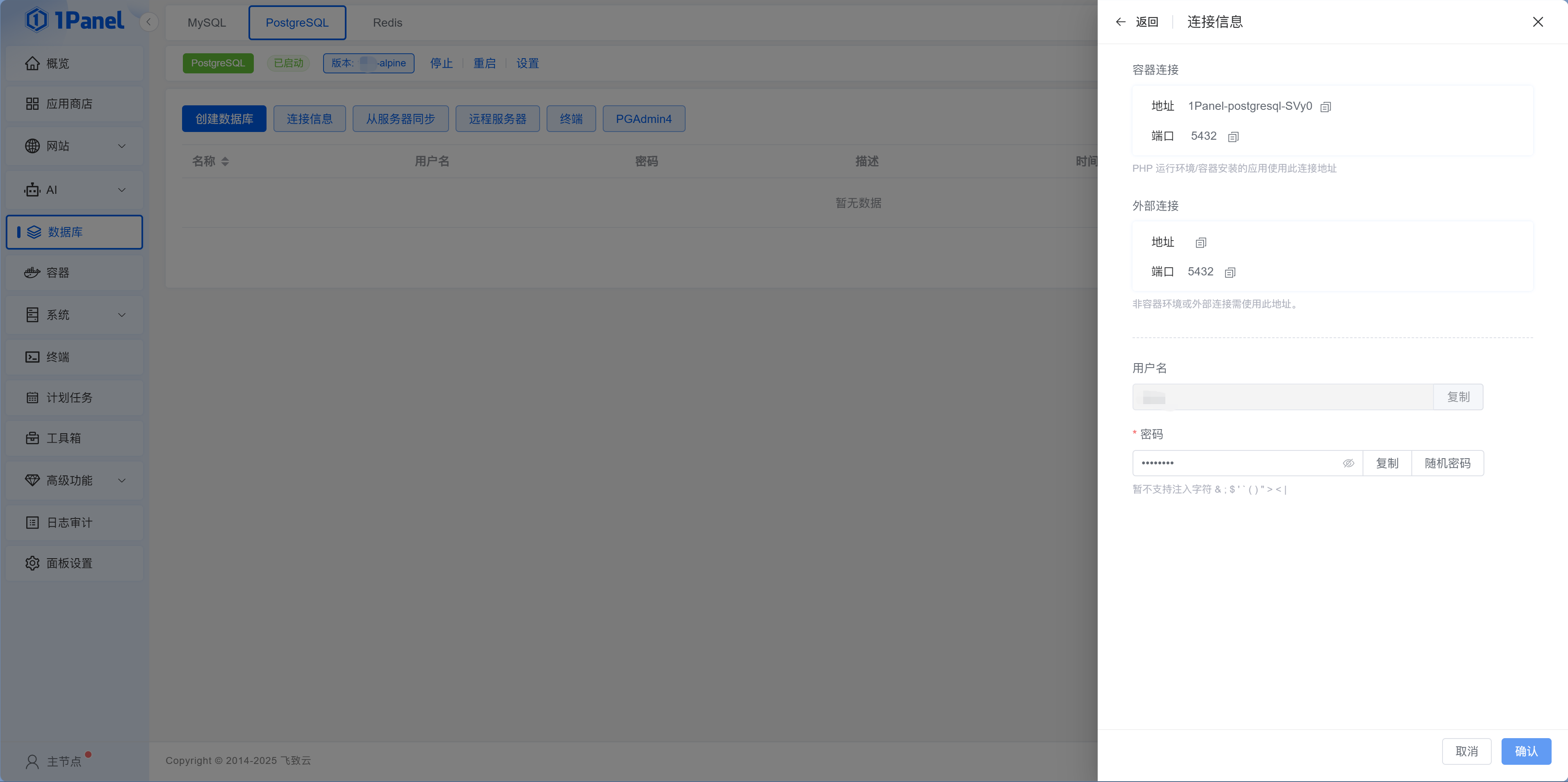
Containerized database connection addresses
Databases installed by 1Panel through Docker run in a containerized manner. The connection info page will prompt different connection addresses for different scenarios. Use the container name for connections from within containers, and 127.0.0.1 for connections from the host—this will be explained in detail in "Container Networking Basics" later.
Container Management
After installing applications, there are two places to manage containers:
- "App Store - Installed": Manage applications installed through the App Store, supporting rebuild, restart, start, stop, uninstall, view parameters, and other operations. Click the "Parameters" button to view and modify application configuration parameters.
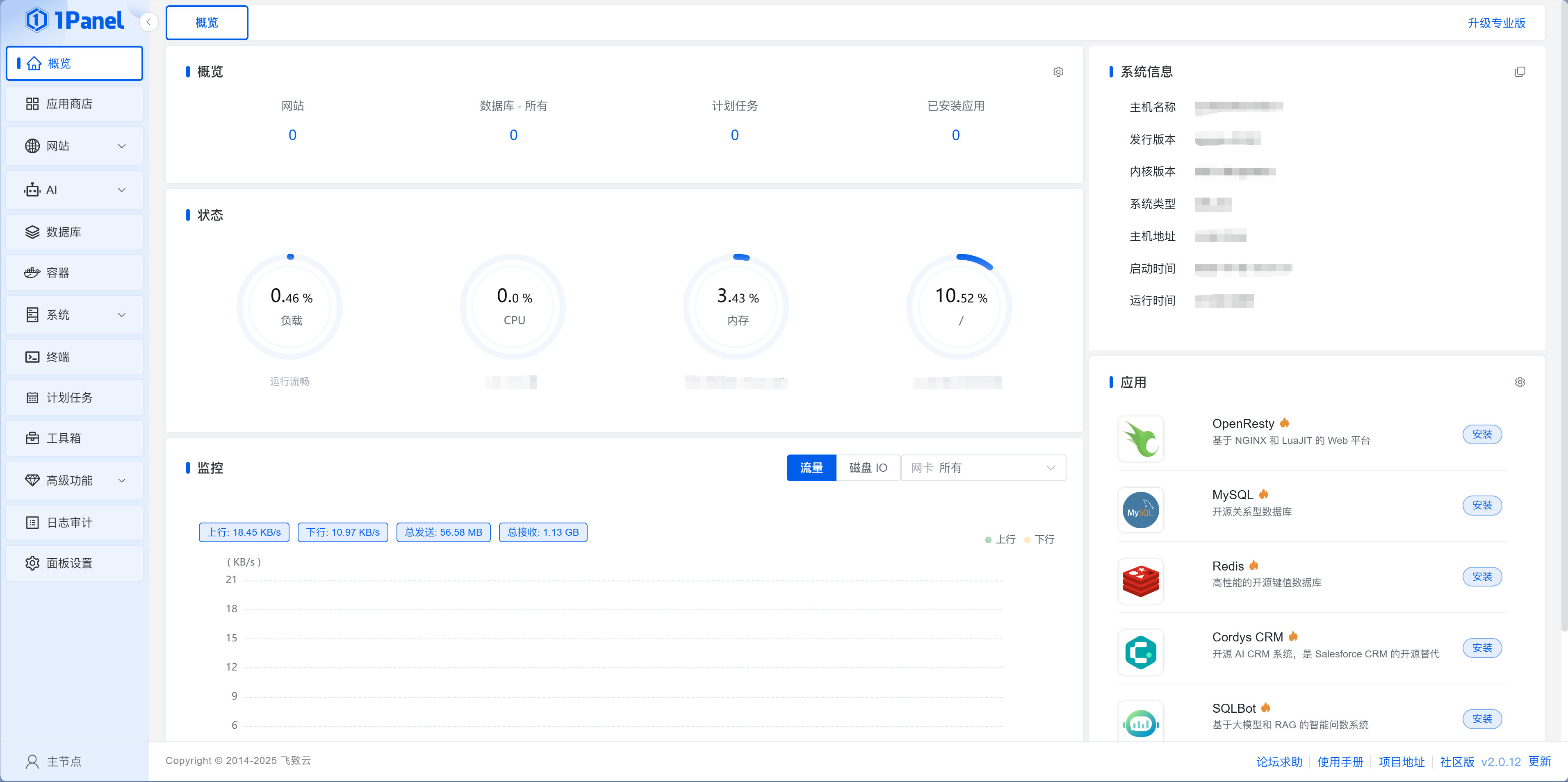
- "Containers": Manage all Docker containers (including those installed via App Store and manually created). Each container is one row, with "Terminal" and "Logs" buttons in the row, and a "More" menu (edit, upgrade, monitor, create image, delete, rename).
Xiao Ming clicked into the "Containers" page and saw PostgreSQL and OpenResty running, each with a green "Running" indicator next to it.
Common operations:
| Operation | Where to Operate | Description | Equivalent Command |
|---|---|---|---|
| Start/Stop/Restart | "Installed" or "Containers" | Control container running status | docker start/stop/restart container_name |
| View logs | "Containers" → container row → Logs | Supports time period filtering, real-time tracking, download | docker logs container_name |
| Enter terminal | "Containers" → container row → Terminal | Select command (like /bin/bash) and user to connect | docker exec -it container_name bash |
| View monitoring | "Containers" → container row → More → Monitor | CPU, memory, disk IO, network usage | docker stats container_name |
| Rebuild | "Installed" → Rebuild | Delete container and recreate based on current configuration, persistent data retained | — |
Xiao Ming saw the PostgreSQL he just installed on the "Installed" page, with a green "Running" status. He tried clicking "Stop," the status turned red; clicked "Start" again, and it recovered in seconds. This sense of control made him feel Docker was indeed useful—applications are like apps on your phone, switch them on and off anytime.
Logs are your best friend
When something goes wrong with an application, your first reaction shouldn't be to search engines, but to check the logs first. On the "Containers" page, click the target container and select "Logs" to see real-time output—supports filtering by last day, 4 hours, 1 hour, 10 minutes, and can enable "Trace" for real-time refresh. Logs are the application's real-time self-talk—it will tell you "I'm looking for the database but can't find it" or "I'm missing an environment variable," much more accurate than your guesses. 90% of problems have answers in the logs.
Data Persistence: Volume Mounts
Xiao Ming wondered: "If I delete the container, will my data be lost?"
The answer is: If Volume mounts are configured, data will not be lost.
The old-timer explained: "A container is like a temporary workstation—it's cleared when you leave. But a Volume is your dedicated filing cabinet—no matter how many times you change workstations, what's in the filing cabinet stays there."
Applications installed by 1Panel are configured with Volumes by default, with data stored in the server's /opt/1panel/ directory. You can view and manage all Volumes on the "Containers - Volumes" page. So you can safely delete and rebuild containers without losing data.
Xiao Ming tried it: stopped the PostgreSQL container, restarted it, and the data in the database was still there. "Like changing workstations, but the filing cabinet didn't move."
# View all Volumes
docker volume ls

# View detailed information of a specific Volume
docker volume inspect 1panel-postgresql-data
Backing up Volumes is real insurance
Although Volumes won't be lost when deleting containers, if the server hard drive fails, the data is still gone. Regularly backing up Volume data to local or cloud storage is real insurance. 1Panel provides scheduled task functionality for automatic backups.
Container Networking Basics
This is where beginners most easily step into pitfalls. Xiao Ming filled in localhost when configuring DATABASE_URL, and the connection failed—with error Connection refused, looking like the database wasn't started, but the database was clearly running.
Core rule: localhost in a container refers to the container itself, not the server host.
When you call "Mom" at home, your mom answers. When you call "Mom" at a friend's house, your friend's mom answers. localhost in a container is the same—each container's localhost is itself, not the server host.
🐳 容器网络架构
| Scenario | Connection Address | Reason |
|---|---|---|
| Container A connects to Container B | Use container name (like 1Panel-postgresql-ukow) | Within the same Docker network, container name is the hostname |
| Server host connects to container | Use 127.0.0.1 or localhost | Container port is mapped to host |
| External browser access | Use server public IP + mapped port | Forwarded through port mapping |
1Panel container naming convention
Database containers created by 1Panel follow the format 1Panel-{database_type}-{random_4_letters}:
1Panel-postgresql-ukow1Panel-redis-w94p1Panel-mysql-abcd
You can view the actual container names on the "Containers" page.
Xiao Ming changed localhost in .env to 1Panel-postgresql-ukow (the actual PostgreSQL container name), restarted the application—the connection succeeded. "So it was just one word." He sighed, this pitfall is small, but without knowing it, it could block you for half a day.
For example: your Node.js application runs in a container, and PostgreSQL also runs in a container. When configuring DATABASE_URL in .env:
# Correct: use the actual container name created by 1Panel
DATABASE_URL="postgresql://username:password@1Panel-postgresql-ukow:5432/database_name"

# Wrong: using localhost (localhost in the container is itself, can't find the database)
DATABASE_URL="postgresql://username:password@localhost:5432/database_name"
Redis connection example:
# With password (note : followed by password)
REDIS_URL="redis://:your_password@1Panel-redis-w94p:6379"

# Without password
REDIS_URL="redis://1Panel-redis-w94p:6379"
How to get database username and password?
On 1Panel's "Database" page, click "Details" or "Connection Info" for the corresponding database to see:
- Username (could be
postgres,root, or your custom username) - Password (password set during installation)
- Container name (also visible on the "Containers" page)
This pitfall will waste you hours
Filling in the wrong connection address is the number one cause of deployment failures for beginners. Error messages are usually Connection refused or ECONNREFUSED, looking like the database isn't started, but it's actually just the wrong address. Remember: containers find neighbors by name, host finds containers by localhost.
Next step
Docker basics are done. Next up is hands-on deployment—14.3.2 Deploying Next.js Applications, get your project actually running on the server.