
14.3.3 Deploying a Static Website
Goal of this section: Use OpenResty in 1Panel to deploy a pure frontend static website.
After deploying his Next.js app, Xiaoming remembered he also had a VitePress documentation site. "Can this go on the server too?"
The experienced admin said, "Yes, but there's usually no need. Static sites are best hosted on Vercel or Cloudflare Pages—global CDN, deploy on push, and zero maintenance. Your VPS is just a single machine on a single network route, so it can't compete on speed or reliability. But since you're learning deployment, it's worth practicing. The process is much simpler than Next.js."
What is a static website?
A static website is a site made up of only HTML, CSS, and JavaScript files. It doesn't need a backend server to process requests in real time. When users visit, OpenResty just serves the files directly to the browser.
Common types of static websites:
- Documentation sites and blogs generated with VitePress / Astro / Hugo
- Build output for React / Vue SPAs (single-page applications)
- Pure HTML landing pages and portfolios
Xiaoming's VitePress documentation site had always been hosted on Vercel, where both access speed and automatic deployment were excellent. But since his server was already running, he wanted to put the docs site there too—mainly for practice, and to experience the full deployment workflow along the way.
The advantages of static websites are that they're fast, lightweight, and almost never go down. You don't need a Node.js runtime—OpenResty alone is enough.
Step 1: Build locally
On your computer, first build the project into static files:
# VitePress
pnpm build    # output is in .vitepress/dist/

# Next.js (static export)
pnpm build    # requires output: 'export' in next.config.js
              # output is in out/

# Vite / React / Vue
pnpm build    # output is in dist/
After the build finishes, you'll get a folder (dist/, out/, or .vitepress/dist/) containing all the files you need to upload to the server.
After running the build command locally, Xiaoming saw that the dist folder was filled with HTML, CSS, and JS files. He opened one of the HTML files and took a look—it was all minified code, completely different from the source code he had written. "So this is the build output, the stuff the browser can run directly."
"That's it? No need to run Node.js?" "Right. A static site is just a bunch of files, and OpenResty simply serves them to the browser."
Step 2: Create a website in 1Panel
Go to the "Website" page in 1Panel, click "Create Website", and choose "Static Website". Enter the primary domain name (or use the IP for testing first), keep everything else as default, and click confirm. 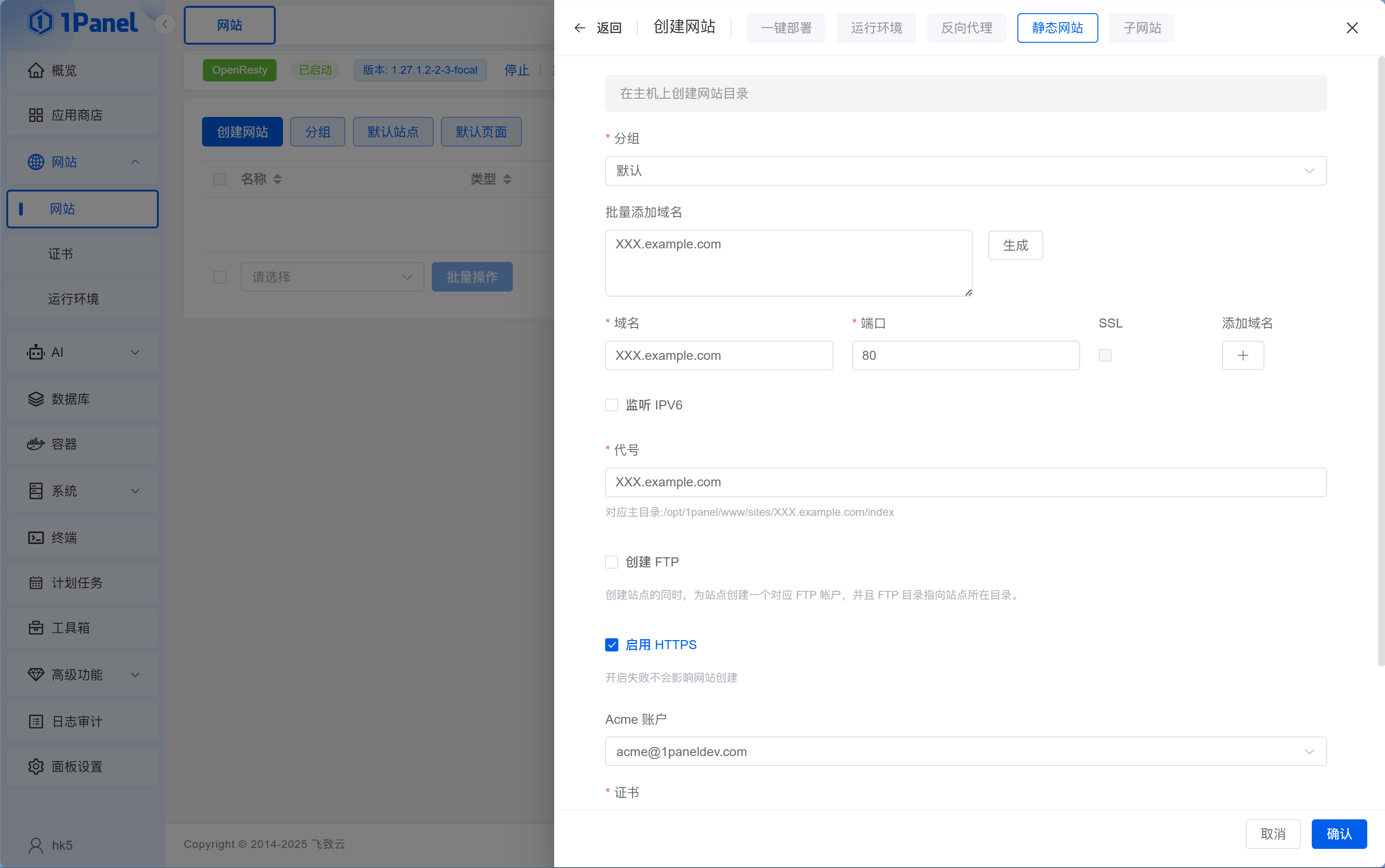
On the "Website" page in 1Panel, Xiaoming clicked "Create Website", chose "Static Website", entered a domain name, and that was it. 1Panel automatically created the website directory and generated the OpenResty config, so there was no need to write any config files by hand.
Step 3: Upload the build output
After creating the website, 1Panel will generate a website root directory (for example, /opt/1panel/www/sites/your-domain/index/).
On the "Files" page in 1Panel, navigate to the website root directory, upload the compressed build output package directly, and then extract it.
Once the upload is complete, visit the site in your browser and the page should load instantly—static websites are ready to view as soon as the files are uploaded, with no waiting for builds or startup.
Extra: SPA routing and caching (not needed in most cases)
What is an SPA?
An SPA (Single Page Application) is a build pattern used by frameworks like React / Vue—the entire website has only one index.html, and page switching is controlled by frontend JavaScript instead of actually loading new HTML files. VitePress, Astro, and Hugo generate real multi-page static HTML, so they are not SPAs.
How can you tell if your project is an SPA?
Quick way to check:
- Check whether
package.jsonhas abuildscript - Run
npm run build(orpnpm build), then inspect the build output:- If there's only one
index.htmlplus a bunch of JS/CSS files → it is an SPA - If there are multiple HTML files (such as
about.html,contact.html) → it is not an SPA
- If there's only one
Common SPA frameworks:
- React (created with Vite or Create React App)
- Vue (created with Vite or Vue CLI)
- Angular
Cases that are not SPAs:
- Traditional multi-page websites (one HTML file per page)
- Static exports from server-side rendering frameworks (Next.js, Nuxt)
If you're not sure, it's probably not an SPA, so you can skip the routing configuration in this section.
Fixing SPA routing
After deploying an SPA, you'll run into a common issue: the homepage opens fine, but refreshing any other page returns a 404. That's because when a user visits /about, OpenResty tries to find about.html, but all SPA content actually lives inside index.html.
Solution: In the website settings, go to the "Basic" page, find the "Pseudo-static" tab in the left sidebar, and enter:
location / {
    try_files $uri $uri/ /index.html;
}
Then click "Save and Reload".
Preset templates for pseudo-static rules
The "Scheme" dropdown includes preset rewrite rules for PHP frameworks like WordPress and Laravel, but there are no presets for Vue / React, so you need to manually enter the rule above.
SPA caching strategy
Static assets in an SPA (CSS, JS, images) rarely change, so enabling caching can make repeat visits load instantly. In the website settings, open the "Configuration File" tab and add the following inside the server block:
location ~* \.(js|css|png|jpg|jpeg|gif|ico|svg|woff2?)$ {
    expires 30d;
    add_header Cache-Control "public, immutable";
}
Users still seeing the old version after an update?
Modern frontend build tools (Vite, Webpack) add a hash to filenames (such as app.a1b2c3.js). Whenever the content changes in a new build, the hash changes too, and the browser automatically requests the new file. So it's safe to use long-term caching—you won't run into the "users still see the old version" problem.
Updating a static website
Unlike Next.js, static websites don't have a "Redeploy" button. The update process is: rebuild locally → upload the new files to overwrite the old ones. If manual uploads feel too tedious every time, you can write a simple script to automate the process, or use GitHub Actions to build and upload automatically when code is pushed (see the CI/CD content in Chapter 12).
Common troubleshooting
| Symptom | Possible cause | Solution |
|---|---|---|
| Visiting the domain shows 404 | Website not created or domain not bound | Check whether the corresponding site exists in the "Website" list |
| The page is blank | Wrong file upload path | Make sure you uploaded the files inside dist, not the dist folder itself |
| Refreshing a page returns 404 (SPA) | Missing route fallback configuration | Add the try_files rule in the website config (see above) |
| Styles/images fail to load | Incorrect base path configuration during build | Check the base setting in vite.config.ts or next.config.js |
| Security group is open but the site is still inaccessible | Port 80 is not allowed in the 1Panel firewall | Add a rule for port 80 under "System → Firewall" |
| Files were uploaded but changes didn't take effect | Browser cache | Force refresh (Ctrl+Shift+R) or clear the cache |
Debugging tips
- Check OpenResty logs: View the access log and error log under "App Store → Installed → OpenResty"
- Check file permissions: Make sure uploaded files are readable (1Panel usually handles this automatically)
- Use browser developer tools: Press F12 to open the Network panel and see which resources failed to load
Next step
Your static website deployment is done. If your project uses a decoupled frontend/backend architecture (frontend + backend API + database), continue to 14.3.4 Deploying a Decoupled Frontend/Backend App.