
Chapter 14: Cloud Server Operations and Project Deployment
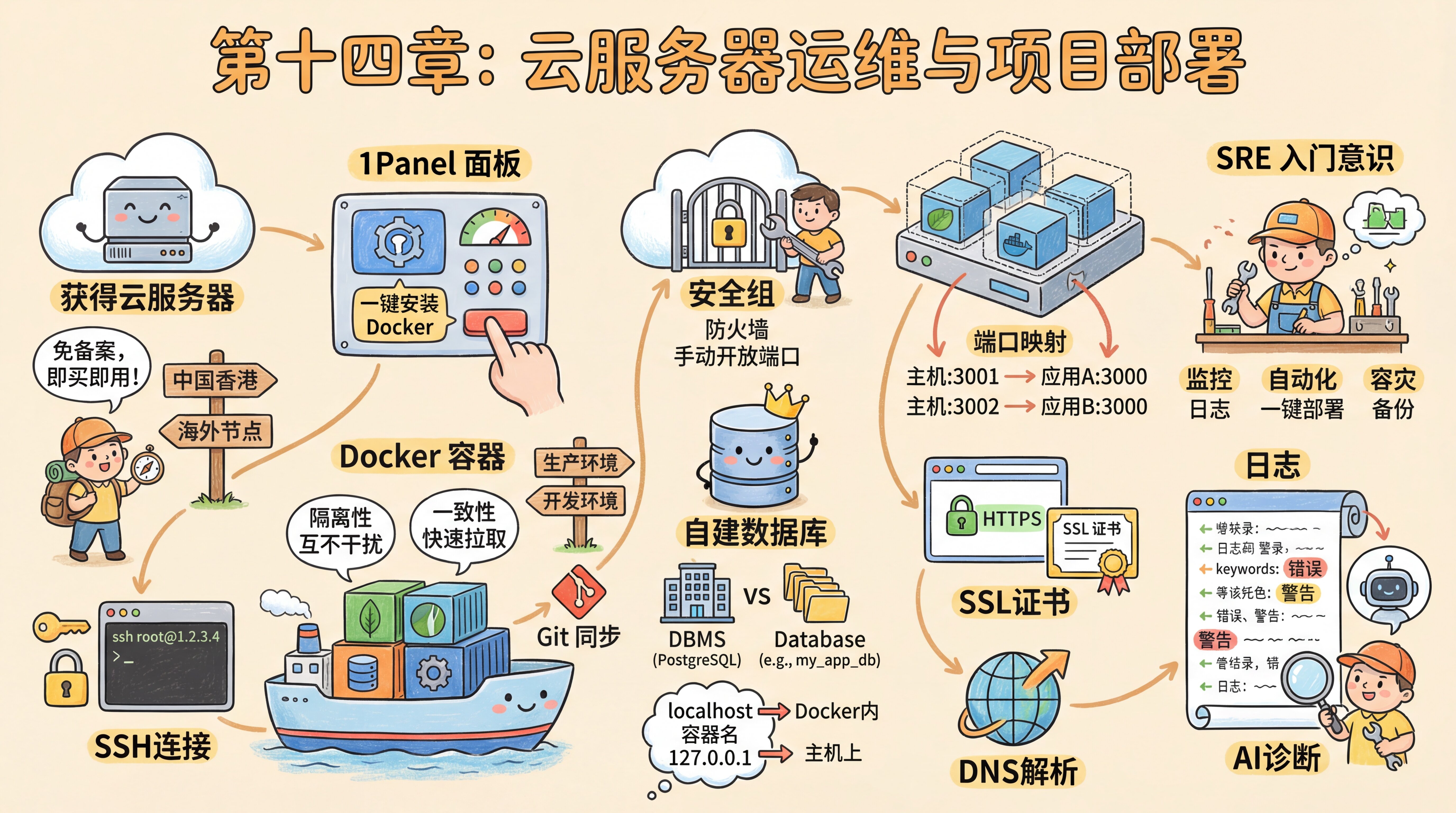
Preface
Xiaoming's website was running on a Serverless platform, the domain was connected, HTTPS showed the green lock, and everything was going smoothly.
But he kept having one thought—what if the platform went down? What if he wanted to install something the platform didn't support?
The mentor saw what was on his mind: "If you want full control, you need your own server."
SSH
On a cloud provider's new user promo page, Xiaoming picked a lightweight server in Hong Kong—no ICP filing required, ready to use immediately after purchase. After placing the order, he got three things: a public IP, a username (root), and a password.
He opened the terminal and typed ssh root@1.2.3.4—a fingerprint confirmation popped up on the screen. Nervously, he typed yes, then entered the password. A black-and-white command prompt appeared: root@xxx:~#.
"I'm in!" Xiaoming was a little excited. This machine had no desktop, no icons, just a blinking cursor. He had already learned the principles of SSH in Chapter 10, but connecting to a server thousands of miles away for real still felt different—like getting the key to an empty house and having to furnish it yourself.
Lock the Doors and Windows
The mentor stopped him: "Don't rush to install things. Lock the doors and windows first. A bare server on the internet gets scanned within minutes on average." It's like getting spam calls right after activating a new phone number—the number range is public, and someone is mass-dialing to probe. A server's public IP is the same: within minutes of going online, automated scripts are already trying passwords one by one.
So Xiaoming followed the mentor to update the system, configure security groups, change the SSH port, and install Fail2Ban. None of these steps were complicated, but every one of them was essential.
The 1Panel Dashboard
After hardening the server, the mentor had Xiaoming install 1Panel—a modern Linux server management dashboard. Xiaoming opened the panel URL in his browser and saw a web-based console: "This is way more user-friendly than the command line."
At the core of 1Panel is Docker. Xiaoming installed Docker with one click and also configured image acceleration. Without it, pulling images in mainland China can take forever.
Docker Containers
"What is Docker?" Xiaoming asked.
The mentor used an analogy: "Shipping containers. Every application—your website, database, monitoring tools—is packaged into its own separate container, running independently without interfering with others or messing up your server system. Installed something wrong? Just delete it and start over."
Xiaoming opened the 1Panel app store and found databases, web servers, monitoring tools... all installable with a single click. "Isn't this just like a mobile app store?"
"Pretty much. Every time you click 'install' in the dashboard, what you're really doing is pulling and running a Docker container."
This isolation mechanism made Xiaoming understand a golden rule: never write code directly on the server. The server is the production environment for running code. Writing and debugging code should happen in your local development environment, then be synced up through Git.
Security Groups
Xiaoming excitedly entered the http://IP:port address provided by 1Panel to access the dashboard—but the browser kept spinning until it timed out. He thought the panel hadn't been installed correctly, but the mentor told him that cloud servers have a first security gate—security groups.
A security group is a firewall set up by the cloud provider at the data center entrance. By default, only SSH (port 22) is allowed through; all other ports are locked down. If you install a new app that uses a new port, you need to go to the console and let the "security guard" know first. It's like a gated residential complex—strangers aren't allowed in by default, and if you're moving in new furniture, you need to notify property management so the truck can get through the gate. Xiaoming manually opened the dashboard port in the cloud provider's console, refreshed the page—and the dashboard appeared.
Self-Hosted Database
Xiaoming opened the 1Panel app store and installed PostgreSQL with one click. During installation, he set the port, admin account, and password.
After installation, he created a specific database called my_app_db on the dashboard's "Database" page. The mentor took the opportunity to explain a basic concept: database software (DBMS) and a database (Database) are two different things.
- DBMS (PostgreSQL): like the Excel application itself.
- Database: like the individual
.xlsxfiles you open in Excel. Install PostgreSQL once, and you can create countless independent databases for different projects.
Container Networking
When Xiaoming was filling out DATABASE_URL in .env, he instinctively entered localhost—and the connection failed. The error message was Connection refused. It looked like the database wasn't running, but it clearly was.
The mentor explained: "If you shout 'Mom' at home, your mom responds. If you shout 'Mom' at a friend's house, your friend's mom responds. localhost inside a container works the same way—each container's localhost refers to itself, not the server host. Containers need to call each other by name."
Three lines to summarize:
- Container to neighbor: use the container name (such as
postgresql) - Host to container: use
localhostor127.0.0.1 - External access: use the server's public IP + mapped port
Port Mapping
Xiaoming was confused: the server only has one public IP, so how can it run several applications at the same time?
As it turns out, Docker provides an isolated network environment for each container. App A listens on 3000 inside its container, and App B also listens on 3000 inside its own container—with no conflict. Through port mapping, the server's port 3001 can be forwarded to App A, and port 3002 to App B. When external users visit IP:3001 and IP:3002, the traffic is routed precisely to the corresponding container.
A building has only one address, but many rooms. A server has only one IP, and port numbers are the room numbers.
SSL Certificates
Xiaoming successfully accessed the application through http://IP:port, but after binding a domain in the dashboard, the browser showed a huge red "Not Secure" warning. When you enter your bank card number online, you instinctively check whether there's a little lock in the address bar—users naturally distrust sites that don't have one too.
The mentor told him he needed an SSL certificate. In the dashboard's certificate settings, Xiaoming requested a free Let's Encrypt certificate with one click and enabled HTTPS. Looking at the little green lock in the address bar, he had finally completed a real full-stack deployment on his own.
Introductory SRE Mindset
Looking at the application running steadily on the server, the mentor said: "Going live is only the beginning. Now you're half an ops engineer already."
He introduced Xiaoming to the concept of SRE (Site Reliability Engineering): solving operations problems with a software engineering mindset. Traditional ops relies on people staying up late to fix incidents; SRE relies on automated systems to keep things stable. It's like upgrading from manually watering plants to an automatic irrigation system—you don't have to think about it every day, but you do need to regularly check whether the system itself is working properly. Xiaoming had already grasped the basics:
- Monitoring: understand system status through logs and analytics tools
- Automation: one-click deployment with Docker, one-click rollback with Git
- Disaster recovery: protect data through backup and restore strategies
"SRE isn't something only big tech companies need—it's a mindset every product should have. Even if your product has only one user, it should still be reliable."
After hearing this, Xiaoming felt like he wasn't just learning technology, but also learning a sense of responsibility. In the past, he'd throw code online and stop thinking about it. Now he was starting to care about questions like "Is it still running?" "How's the user experience?" "Is the data safe?"
Logs
A few days after deployment, a friend told Xiaoming that the page wouldn't open. Xiaoming tried it himself and everything looked normal. He started to suspect it was his friend's network issue.
The mentor said: "Don't guess—check the logs."
Logs are the running record automatically written by a program—what happened when, and whether any errors occurred. They're like an airplane's black box: when something goes wrong, you can pull them up and inspect them. In 1Panel, you can click the container's "Logs" button to see real-time output; if you're using a Serverless platform, the platform also provides a web-based log viewer.
What should you look at? Beginners only need to focus on three keywords:
- Error: an error, followed by specific error details telling you what went wrong
- Warning: a warning, not an error but worth checking
- Logs you wrote yourself: such as "user started registration" or "database connected successfully," which help you pinpoint how far the program got
Common patterns: if you see "module not found," the dependencies weren't installed correctly; if you see "connection refused," the database address is wrong or the database isn't running; if you see "timeout," it's either a network issue or a problem in your code logic. When you run into these, copy the key log details and ask AI to help diagnose them. Logs may contain sensitive information (such as database connection strings), so be careful not to screenshot and post that content publicly while troubleshooting.
Xiaoming did exactly that—he found an entry in the logs: Error: connect ECONNREFUSED 127.0.0.1:5432, copied it into Claude Code, and within seconds it pinpointed the issue: the hostname in DATABASE_URL should be the container name, not localhost. After fixing it, the page came back.
Technology is not only about creating, but also about protecting. Going live is not the end, but the beginning of a long-term responsibility.
Chapter Summary
- 14.1 VPS Buying Guide — Comparison of mainstream cloud providers, configuration selection, data center location, operating system selection
- 14.2 VPS Initialization and Security Configuration — SSH connection, security group setup, 1Panel installation, security hardening
- 14.3.1 App Store and Docker Basics — Core Docker concepts, app store, container management, data persistence, container networking
- 14.3.2 Deploying a Next.js Application — Runtime environment configuration, environment variables, build and startup, port mapping
- 14.3.3 Deploying a Static Website — OpenResty static sites, file upload, SPA routing, caching strategies
- 14.3.4 Deploying a Separated Frontend and Backend Application — Multi-container orchestration, reverse proxy, environment variable management, data backup
- 14.4 Configuring Domains and Certificates — DNS resolution, SSL certificate requests, HTTPS redirects, certificate renewal
- 14.5 Other Fun Applications — Umami analytics, n8n automation, Uptime Kuma monitoring
Previous Chapter: Chapter 13: Domains, DNS, and Network Access
Next Chapter: Chapter 15: SEO, Sharing, and Analytics